

How to Share the Guest Portal with your Guests
Configured your Guest Portal and wondering how to start sharing it with guests? You’ll be sharing the guest portal links through your PMS messaging. Each portal link is unique to the reservation it is for, because of this we use the Reservation ID to make the link unique! Each PMS has a different way of building this link to send to guests.
Identify your SuiteOp Portal URL
Section titled “Identify your SuiteOp Portal URL”The SuiteOp guest portal URL can be structured in one of two ways, depending on whether you have set up a custom domain. It’s highly recommended to set up a custom domain!
- Without a custom domain:
https://dash.suiteop.com/portal/verify - With a custom domain:
https://subdomainofyourchoice.yourdomain.comFor example:welcome.grandbudapesthotel.com
When guests land on the portal verification page, they’ll be prompted to enter their confirmation code and last name. After verifying, guests are taken to the Reservations Hub where they can see all their reservations organized by status.
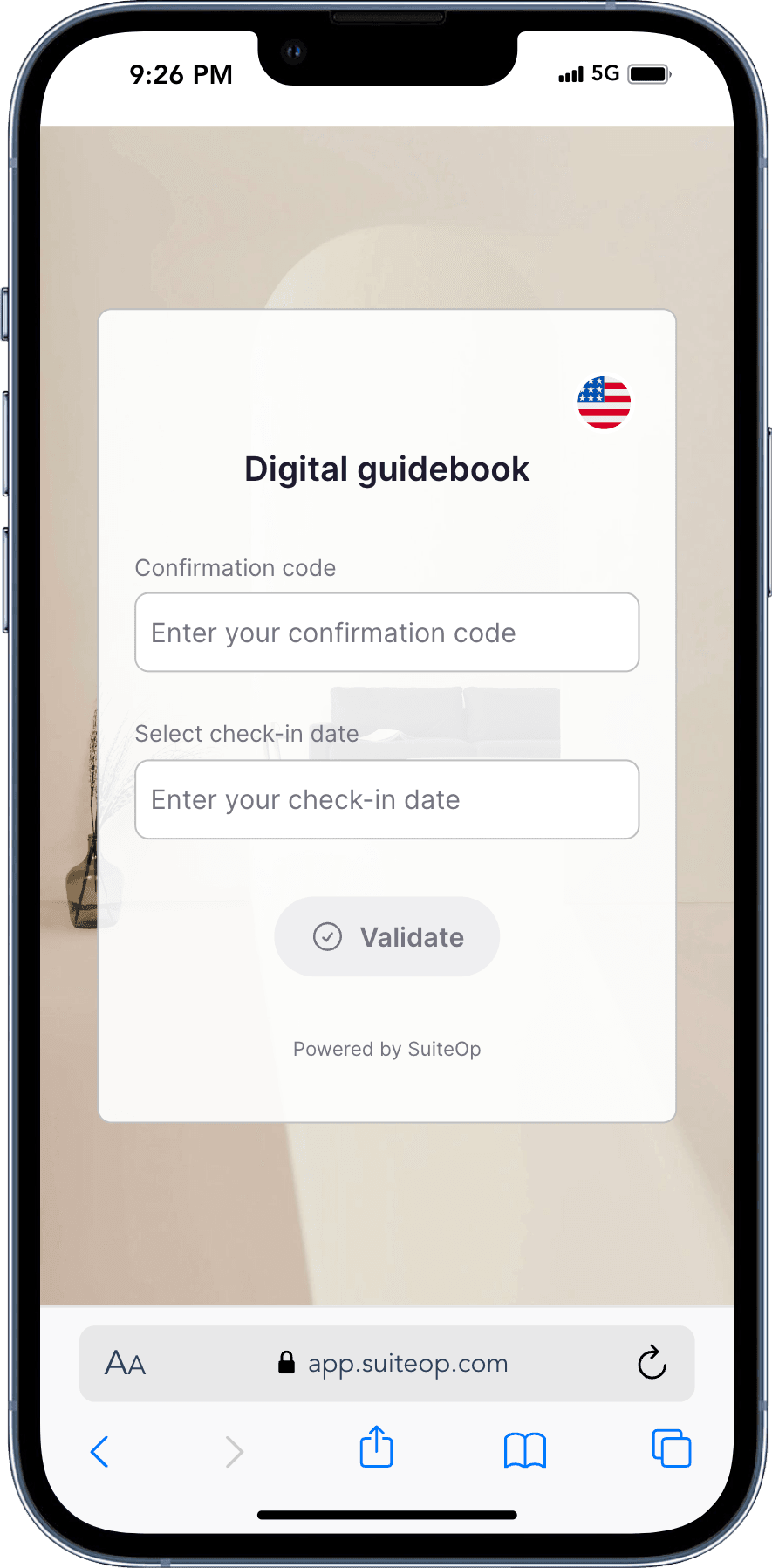
Include the confirmation code for a smoother experience
Section titled “Include the confirmation code for a smoother experience”When sharing a portal with guests, we recommend including the confirmation code and last name in the URL. This way, verification happens automatically and guests are taken straight to their reservations.
For instance, if your guest has confirmation code HMNFOF9KZW and last name Smith, the URL would be:
- Non-custom domain:
dash.suiteop.com/portal/verify?code=HMNFOF9KZW&lastName=Smith - Custom domain:
welcome.grandbudapesthotel.com/portal/verify?code=HMNFOF9KZW&lastName=Smith
Now — you may be thinking: how can I dynamically add the confirmation code to each URL when sending messages to my guests? Thankfully, every PMS we work with has either a variable enabling you to append the confirmation code or a custom variable we send each portal link to.
Appending the confirmation code
Section titled “Appending the confirmation code”Guesty uses #{{confirmation_code}} and #{{guest_last}}, so your guest portal URL can be:
- With a custom domain:
subdomainofyourchoice.customdomain.com/portal/verify?code=#{{confirmation_code}}&lastName=#{{guest_last}} - Without a custom domain:
dash.suiteop.com/portal/verify?code=#{{confirmation_code}}&lastName=#{{guest_last}}
Using a custom variable
Section titled “Using a custom variable”Hostaway uses two variables for the reservation ID (an internal one and an external one). To make it easy for you, we created a custom variable in Hostaway #{{reservation_suiteop_portal_link}}, so your guest portal URL can be:
- With a custom domain:
#{{reservation_suiteop_portal_link}} - Without a custom domain:
#{{reservation_suiteop_portal_link}}
If you have a custom domain linked to a brand to which your property is associated, we’ll push that domain as part of that URL.
Create automated messages to send the portal link
Section titled “Create automated messages to send the portal link”We recommend creating a minimum of 4 messages that include the SuiteOp portal link in your PMS messaging automations, for maximum engagement and seamless guest stays that reduce questions throughout their stay.
Message #1 — Confirmation Message
Section titled “Message #1 — Confirmation Message”Since each PMS has different variables for the confirmation ID, and some use a SuiteOp variable for the guest portal link, we’ll refer to your guest portal as [GUEST PORTAL LINK] in the message templates below.
Hi there
#{{guest_first}},Thank you for booking!
Complete the steps in your personalized guest portal to get access to details about your stay, including check-in instructions.
[GUEST PORTAL LINK][Add conclusion and more branded elements here]
Message #2 — Reminders (Pre-check-in / Check-in Instructions)
Section titled “Message #2 — Reminders (Pre-check-in / Check-in Instructions)”These messages can be sent a day before check-in or at any time you find convenient, depending on your guest types. They can also be dynamic: SuiteOp pushes a Yes/No variable to some PMS reservation fields to indicate whether a guest’s pre-check-in is complete.
If this is available in your PMS, you can use this information to send condition-based messages. For instance, encourage guests to complete their pre-check-in if they haven’t, or invite them to check their guest portal for check-in details if they have.
As a reminder: if a guest has not completed their pre-check-in, they won’t be able to access their check-in instructions.
IF SuiteOp Portal Completion is NOT true:
Hey there
#{{guest_first}},It looks like you haven’t completed your pre-check-in yet. Please do so as soon as you can to unlock your check-in instructions and other exciting details about your stay!
[GUEST PORTAL LINK][Add message conclusion and more branded elements here]
IF SuiteOp Portal Completion IS true:
Hey there
#{{guest_first}},Be sure to visit your personalized guest portal for useful information about your stay and fun recommendations we’ve compiled for your trip. You’ll also find your check-in details there.
[GUEST PORTAL LINK]?tab=checkin[Add message conclusion and more branded elements here]
By adding ?tab=checkin at the end of your dynamic link, guests will be directly redirected to the check-in details in their guest portal.
Guesty Example:
To send dynamic messages that depend on the status of the guest portal’s pre-check-in, you can use the Add Conditions variable SUITEOP_PORTAL_COMPLETED with the options YES or NO.
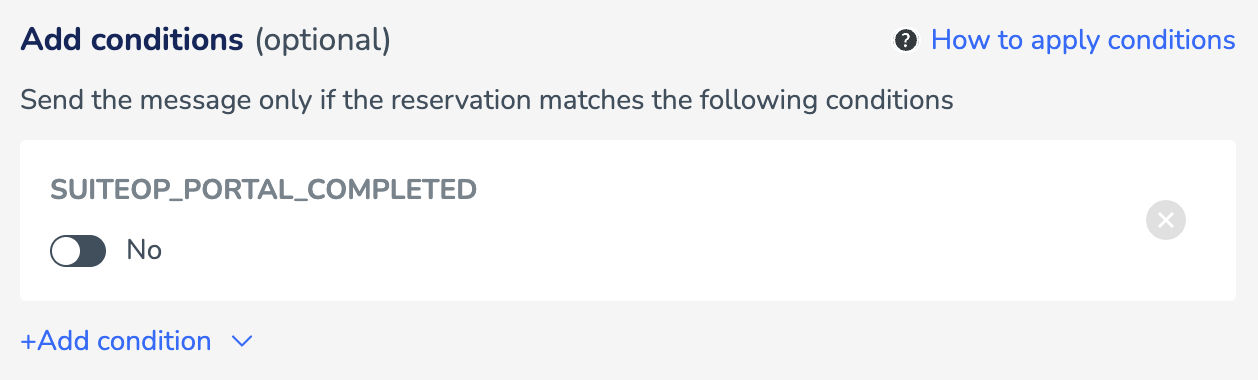
Hostaway Example:
To send dynamic messages that depend on the status of the guest portal’s pre-check-in, use the “Additional Conditions” feature’s custom field SuiteOp Portal Completion with is/is not true.

Generic Example (if status is not available in your PMS): Currently, not all PMSs have the capability to send reminders based on the status of the guest portal pre-check-in. However, you could use a more generic message like this sent 1 day before check-in:
Hey there
{{guest_first}},If you haven’t already completed your pre-check-in, have a look as soon as you can to unlock your check-in instructions and other exciting details about your stay!
[GUEST PORTAL LINK][Add message conclusion and more branded elements here]
If your guests typically book well in advance, adding additional reminders can be beneficial. For example, if the lead time is more than 8 days, you could send a reminder 5 days before check-in.
Remember, only messages that meet the conditions you set will be sent. If you have two reminder messages: one 5 days before check-in and another 1 day before, and your guest completes their pre-check-in 3 days before their stay, they won’t receive the second reminder.
Message #3 — Check-in day link
Section titled “Message #3 — Check-in day link”This message can be sent the day of check-in, only if the guest has completed their pre-check-in steps.
We’re excited to welcome you today,
#{{guest_first}}!Remember, all of your check-in instructions can be found in your guest portal below.
[GUEST PORTAL LINK]?tab=checkin
Message #4 — Checkout Details
Section titled “Message #4 — Checkout Details”This message can be sent on the day of check-out. Alternatively, you could create two versions: one for a 1-night stay, sent on the morning of check-out (e.g., 9 AM on the check-out day), and another for 2+ night stays, sent the evening before check-out, giving guests more time to review their check-out details.
Hi
#{{guest_first}},We hope you had a lovely stay! As your check-out is today, please review our check-out details before you leave.
[GUEST PORTAL LINK]?tab=checkout
By adding ?tab=checkout at the end of your dynamic link, guests will be directly redirected to the check-out details in their guest portal. Make sure you’ve set up checkout instructions prior to sending this message to your guests.
Message #5 — Deep link to upsells
Section titled “Message #5 — Deep link to upsells”As you’ve now seen, SuiteOp enables you to send messages to guests that deep-link to specific pages of the guest portal, like the check-in and check-out instructions. You can use this to promote specific upsells ahead of their stay.
You could, for instance, create an automated message sent only to guests that have booked a certain number of days in advance or more, inviting them to “check out this fun experience” or “consider an early check-in.”
Deep-linking to upsells is straightforward:
- Get your upsell ID — Open your upsell and scroll down to find the upsell ID.
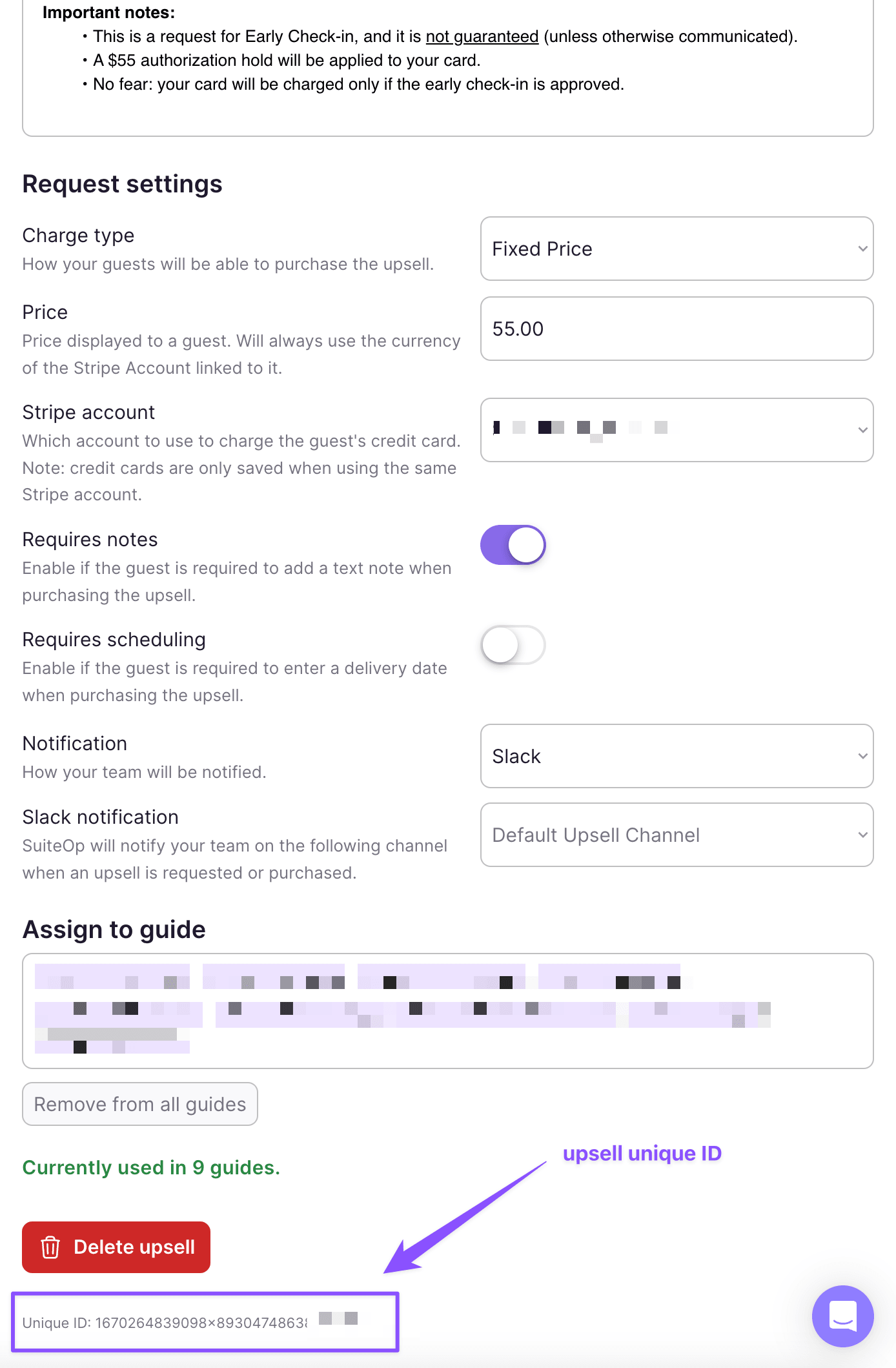
- Build your upsell deep-link:
[GUEST PORTAL LINK]?tab=upsells&upsell=[ID]