

General PMS: How to connect your PMS account to SuiteOp
Learn how to seamlessly connect your PMS account with SuiteOp for efficient integration. Follow these straightforward instructions to establish a secure and reliable link between the two applications.
Go to dash.suiteop.com
1. Navigate to the Integrations menu.
Section titled “1. Navigate to the Integrations menu.”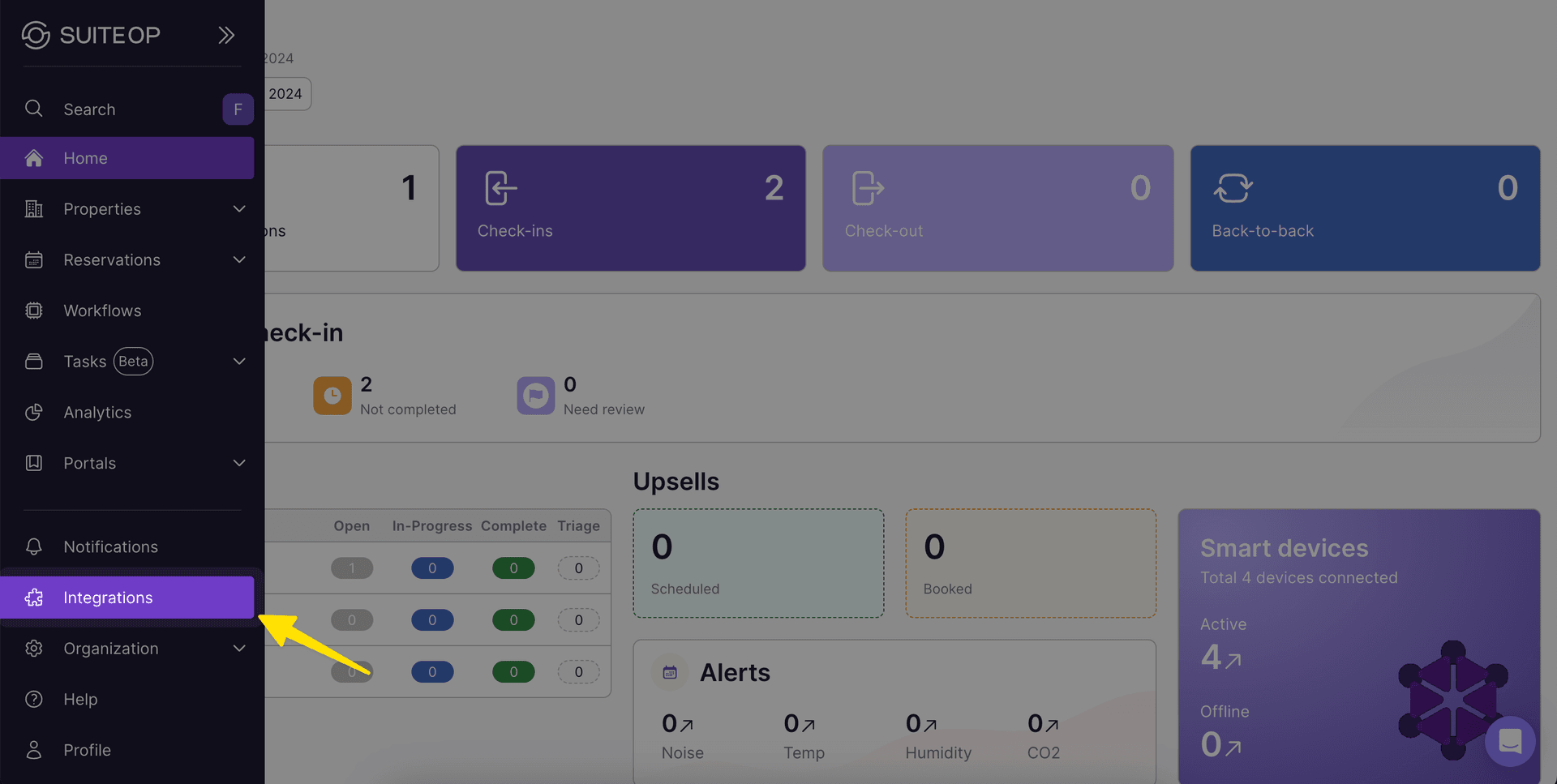
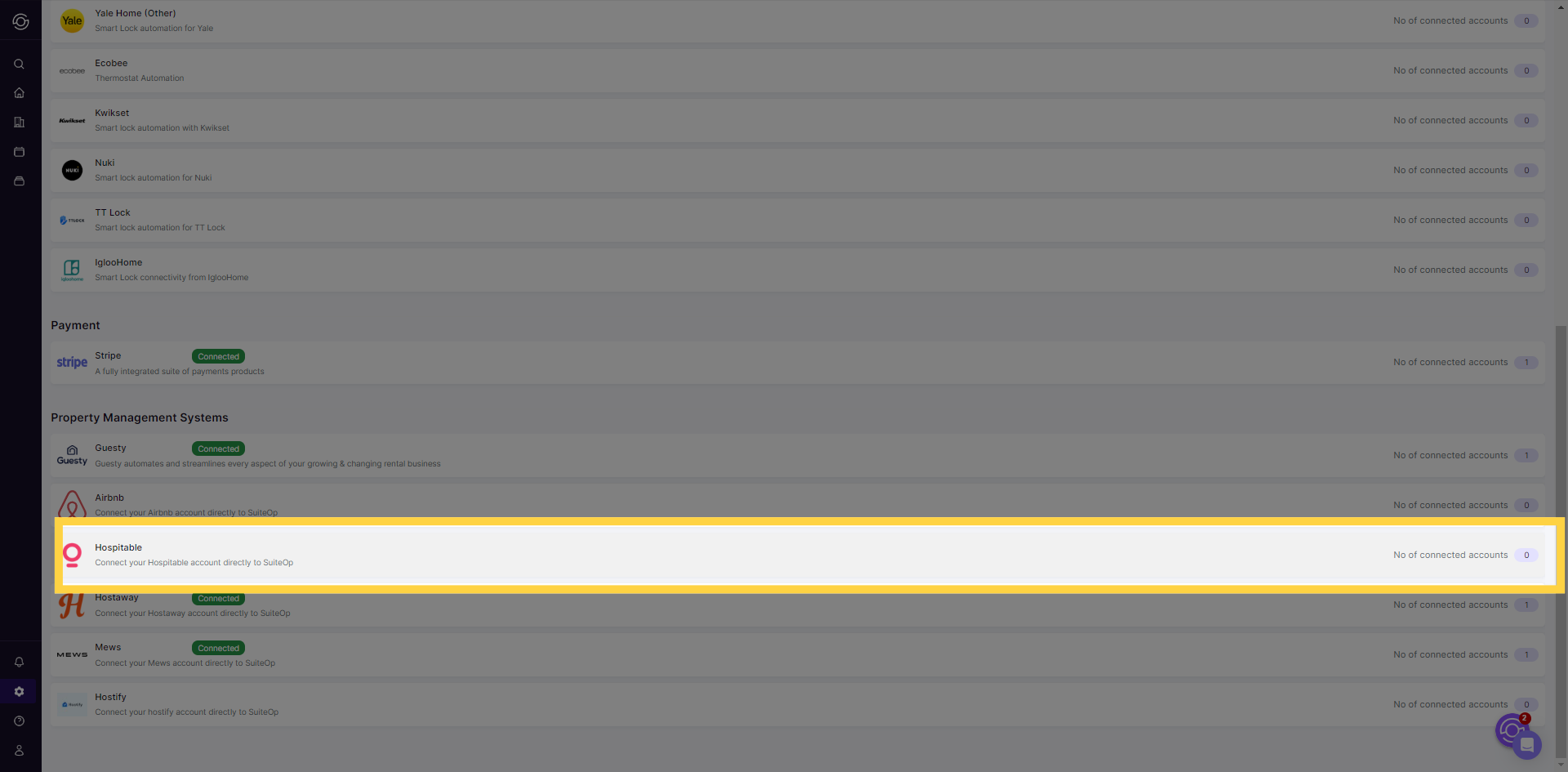
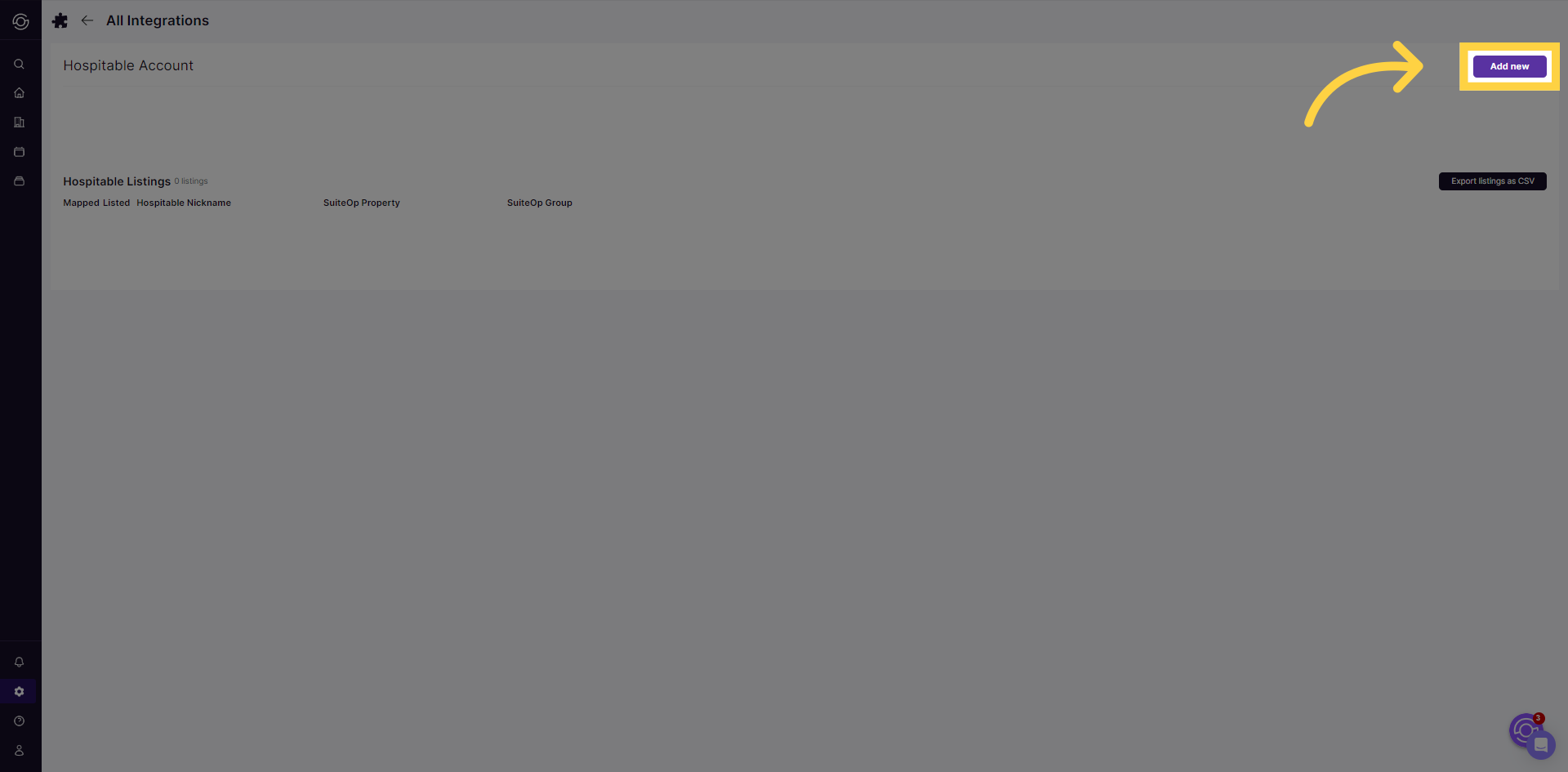
6. Click on “Authorize SuiteOp” button to approve the connection.
Section titled “6. Click on “Authorize SuiteOp” button to approve the connection.”- To import listings from your PMS, click on “Sync Listings” button.
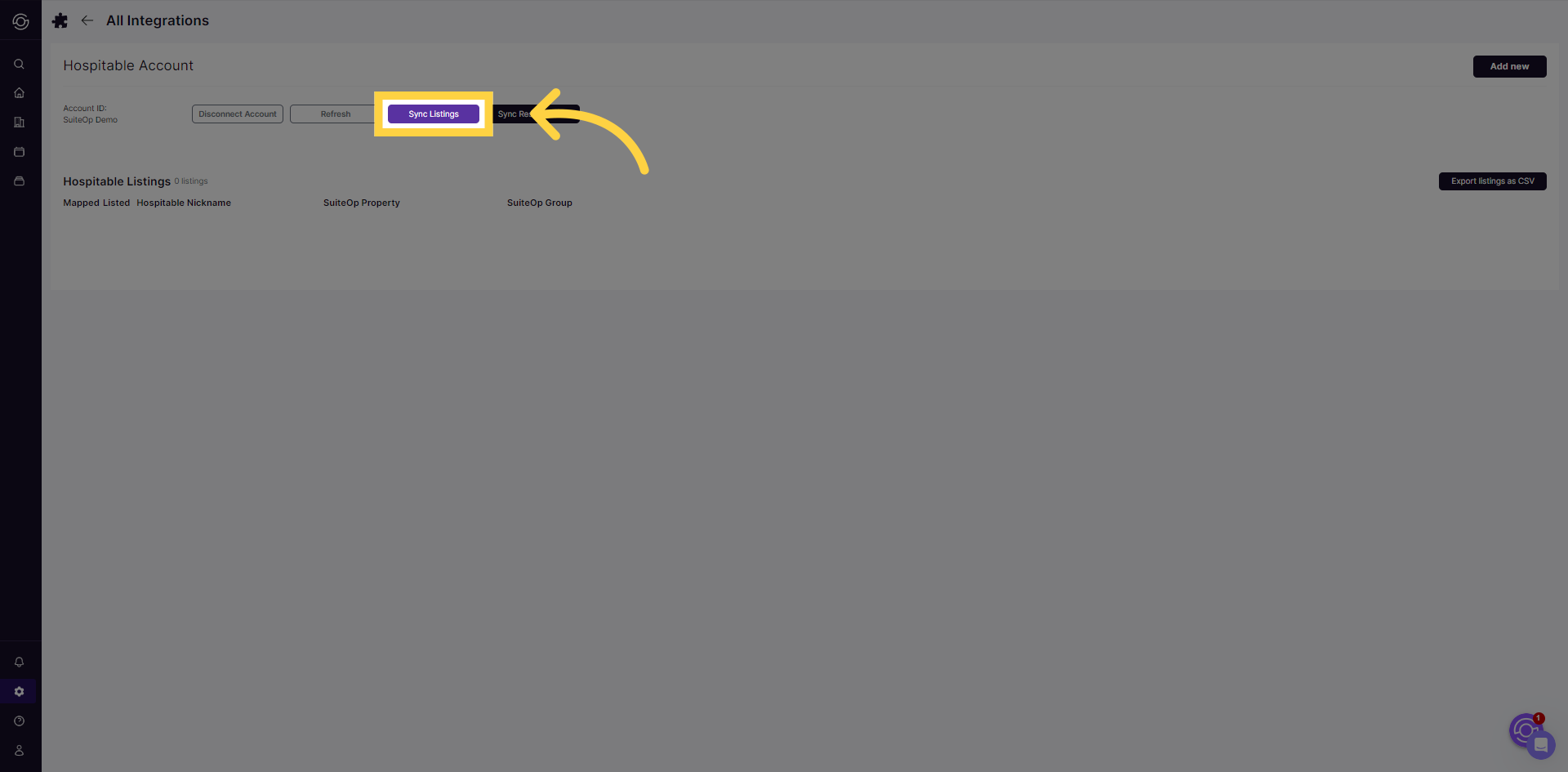
8. Available listings will appear then click “add property” to start the mapping process.
Section titled “8. Available listings will appear then click “add property” to start the mapping process.”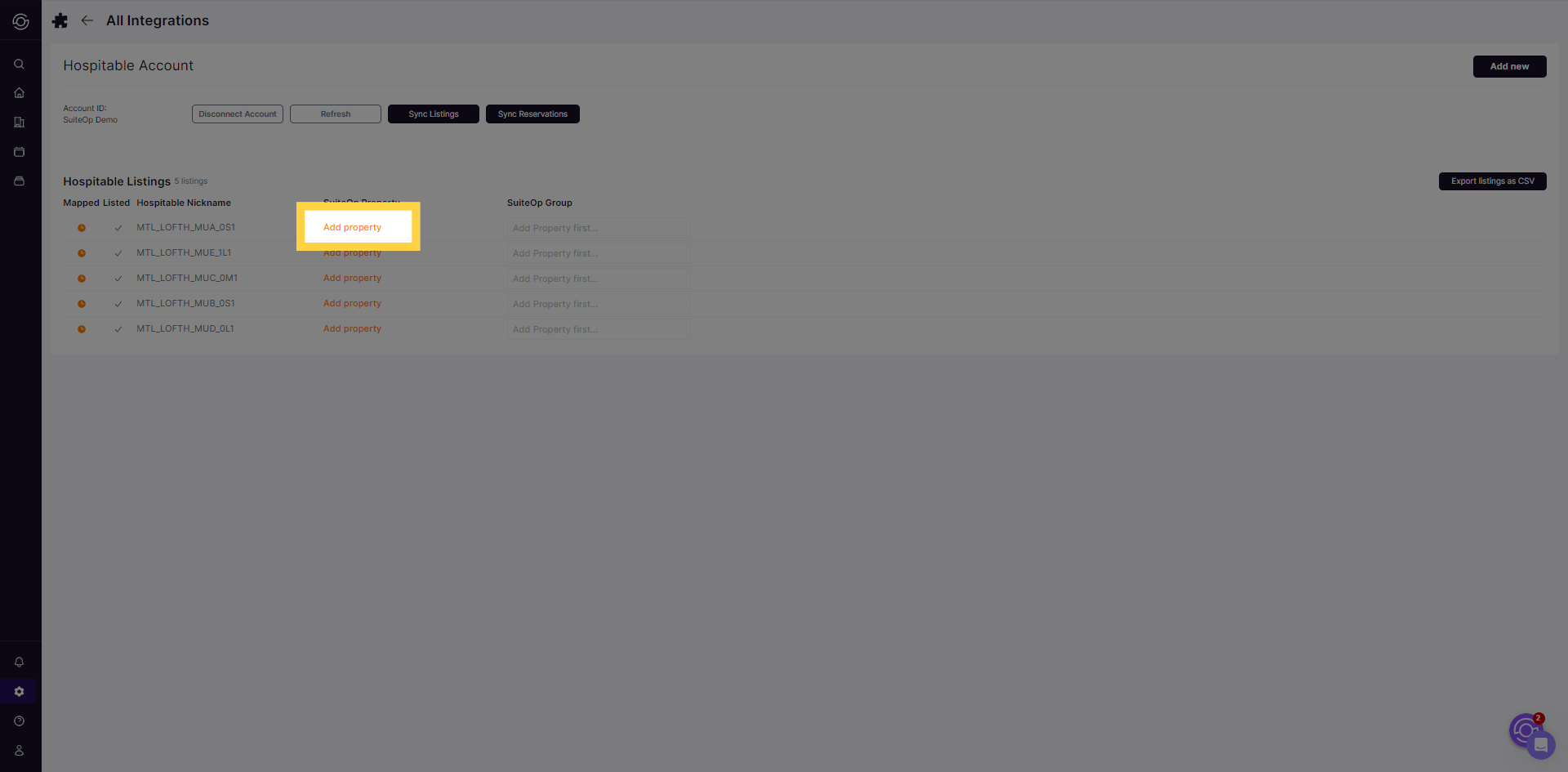
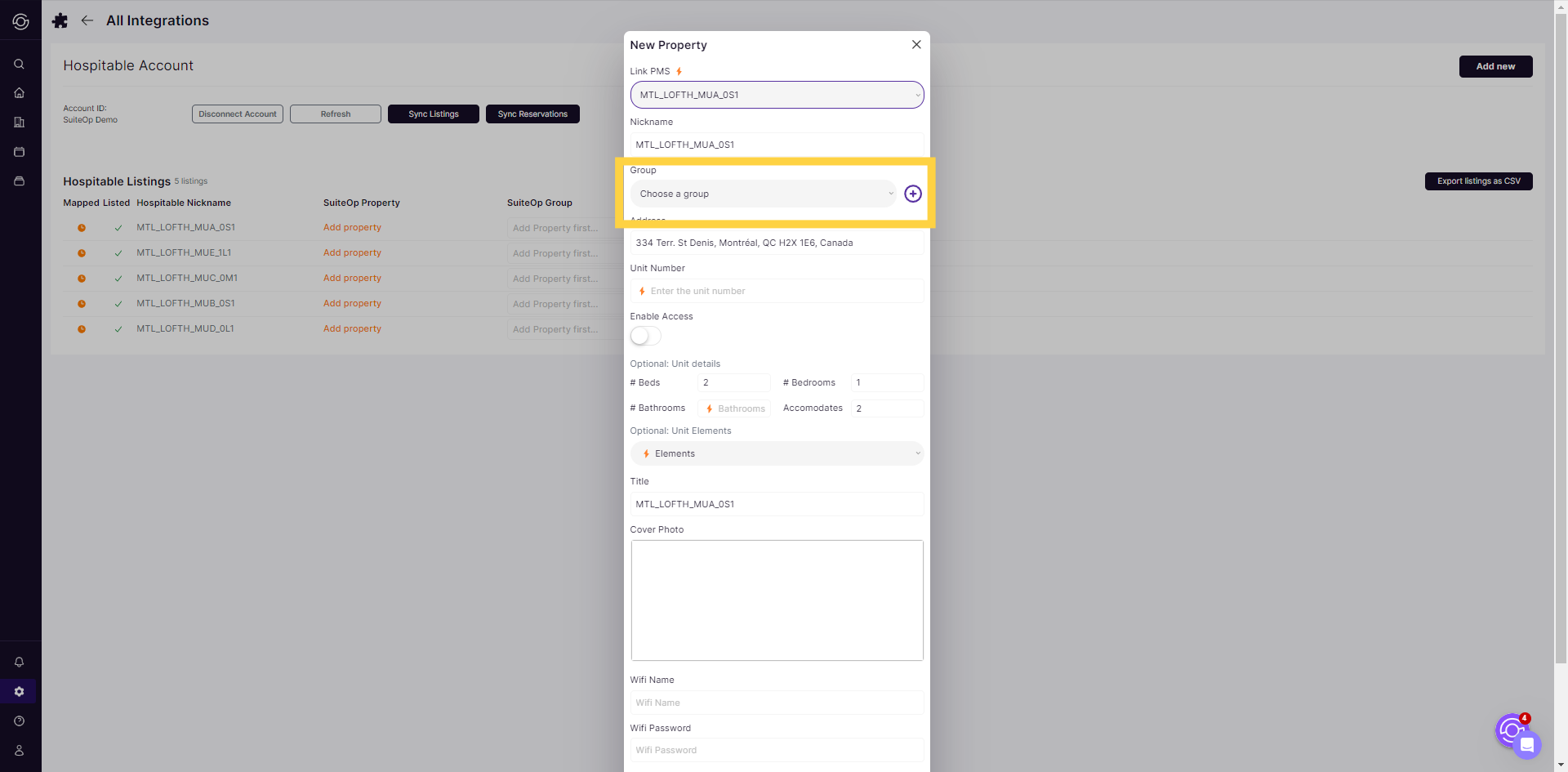
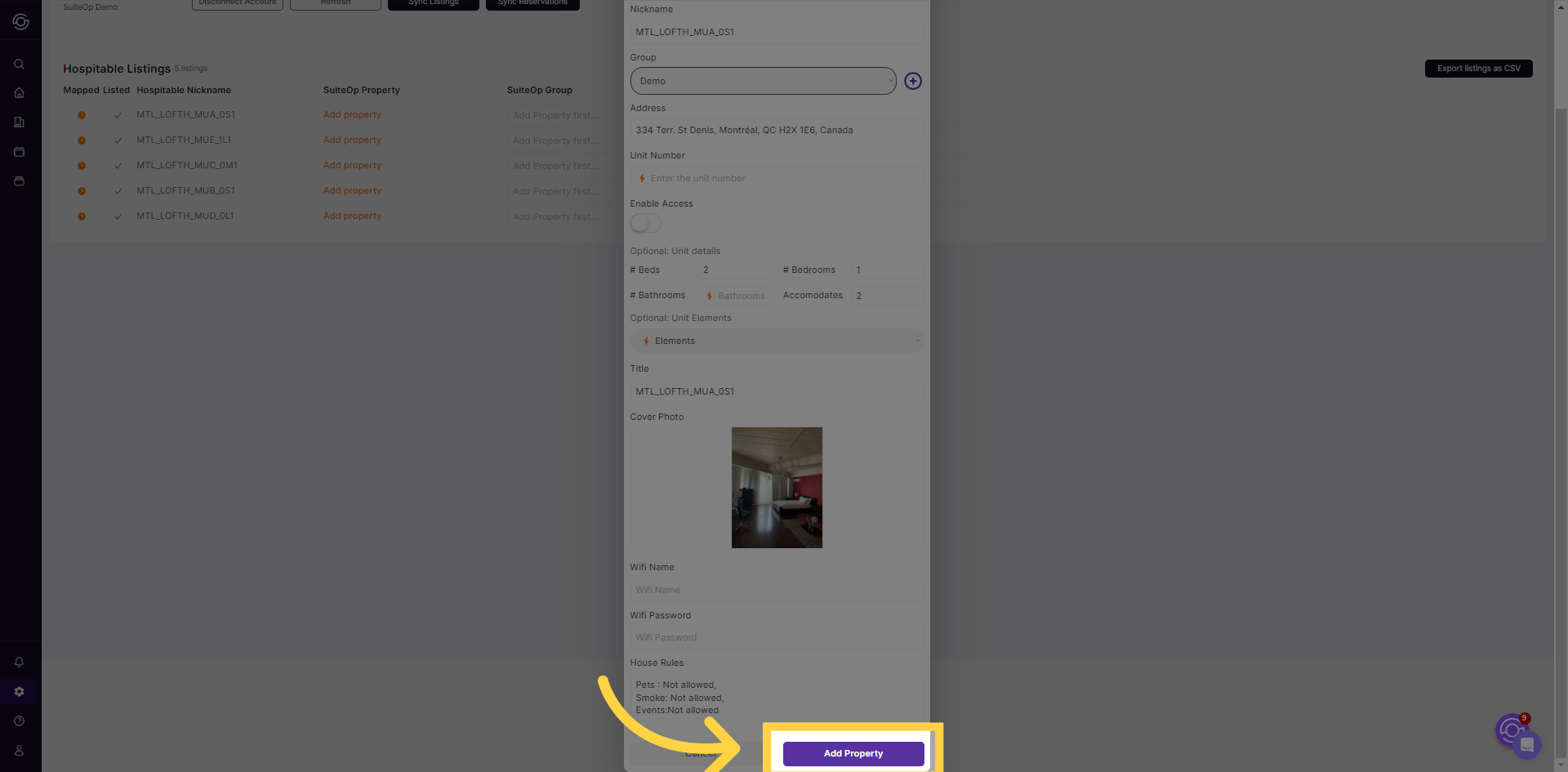
Please reach out if you’re having trouble with your PMS integration.