

Background Checks with Authenticate.com
If you want more thorough screening beyond the identity check, you can add a background check step to your guest verification flow. Background checks are powered by your Authenticate.com account and screen guests against criminal records and global watchlists.
Adding a background check step
Section titled “Adding a background check step”-
Create the step
- Click Add New and choose Background Check
- Give it a nickname (only visible to your team)
- Set the sort order to control where it appears in the guest’s verification flow
-
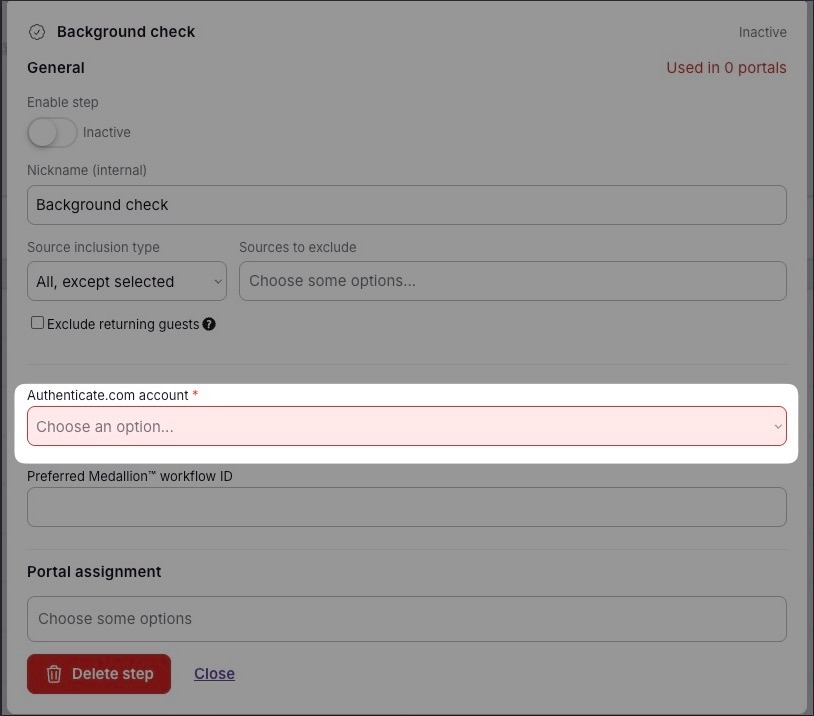
Choose your Authenticate.com account
Select which Authenticate.com account to use from the dropdown. If you have connected multiple accounts, pick the one you want to use for this step.
-
Set source rules (optional)
- Length of stay — Only require background checks for stays longer or shorter than a set number of days
- Booking sources — Include or exclude specific sources (Airbnb, Booking.com, Vrbo, etc.)
- Returning guests — Toggle to skip the step for guests who have stayed before
-
Assign and activate
- Assign the step to one or more portals, properties, or property groups
- Toggle the step to Active so guests can see it
What guests see
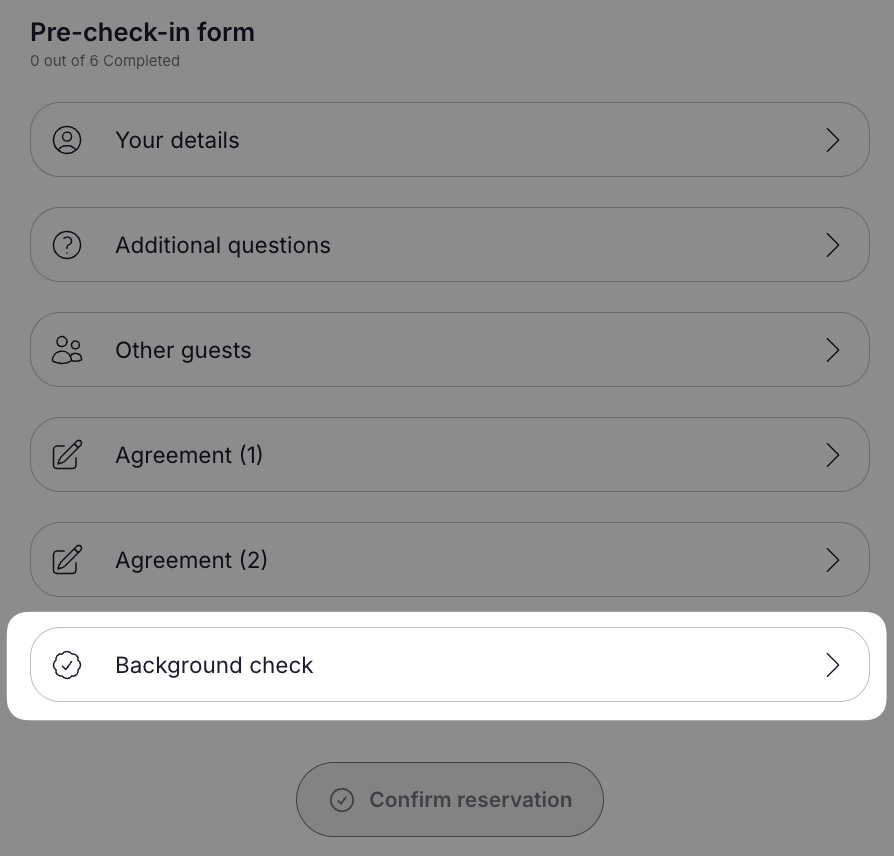
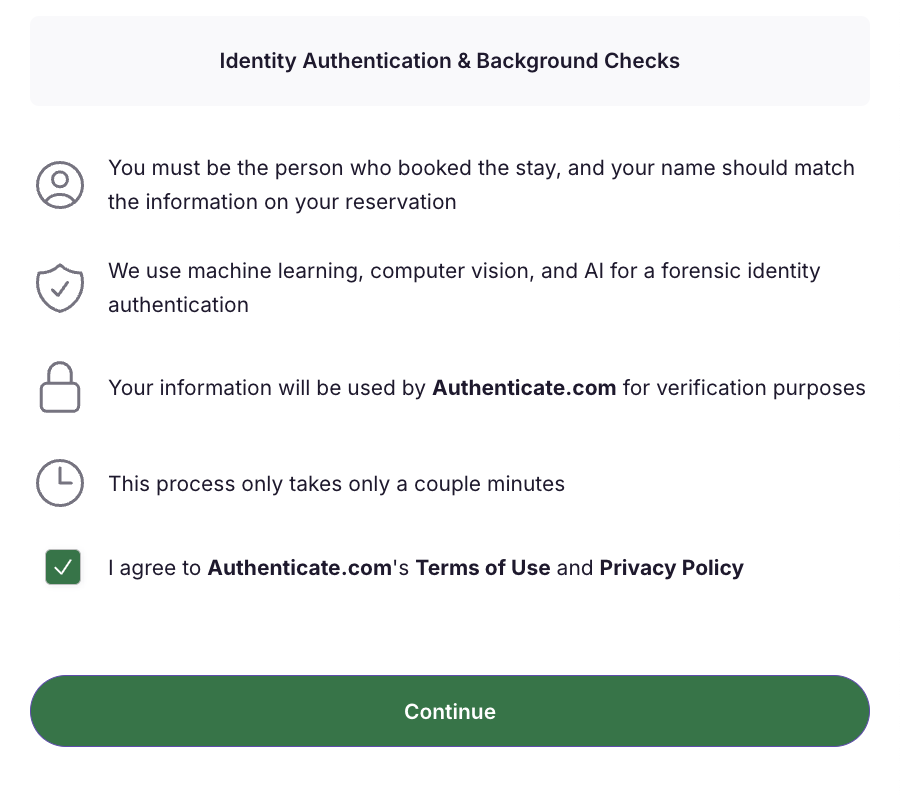
Section titled “What guests see”After you add the background check step, guests will see a Background Check item in their pre-check-in form. They go through the following screens:
- Consent — The guest reads and agrees to the background check terms
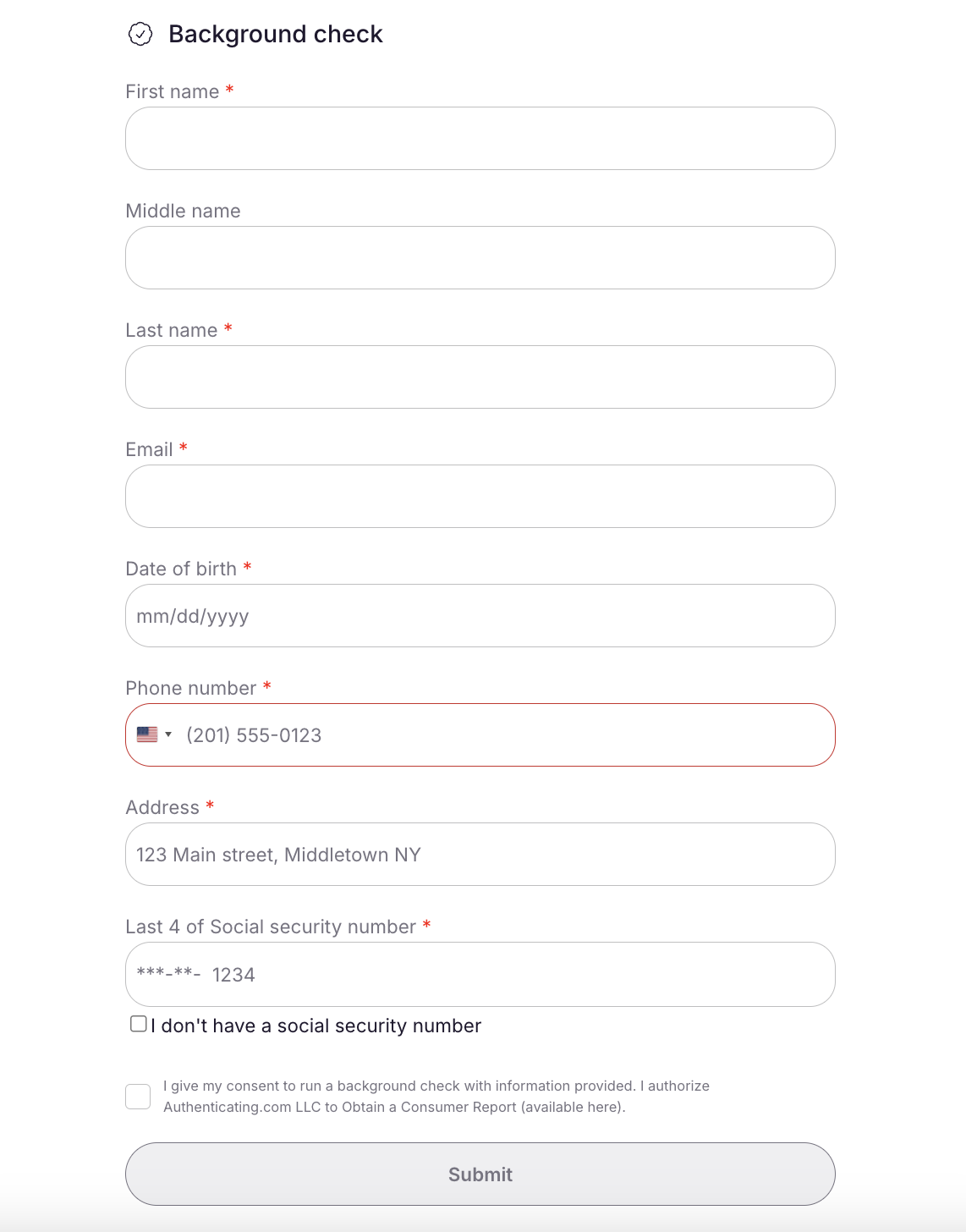
- Form — The guest fills out their personal details:
- First name and last name (prefilled from the reservation when available)
- Date of birth
- Email (prefilled when available)
- Phone number
- Last four digits of their Social Security Number
- Address, city, state, and zip code (optional)
- Results — The guest sees their check outcome:
- Clear — No records found
- Flagged — Records found, with details on criminal history and global watchlist status
Reviewing background check results
Section titled “Reviewing background check results”Open a guest’s reservation and scroll to the verification section. Click on the Background Check step to see:
- Status — Whether the check is pending, complete, or encountered an error
- Criminal record — Whether any criminal records were found
- Global watchlist — Whether the guest appears on any international watchlists
If a background check is flagged, review the details and decide whether to approve or decline the guest based on your company’s policy.
Related articles
Section titled “Related articles”- Authenticate.com Integration — Connect your Authenticate.com account to SuiteOp
- Identity Check — Set up AI-powered identity verification
- Setting Up Guest Verification — Configure all verification steps
- Override Verification — Waive or reset verification steps for specific guests