

How to Integrate Stripe to SuiteOp
Stripe is one of three payment providers supported by SuiteOp for collecting guest payments. Once connected, your organization can manage subscription billing, collect guest payments tied to reservations, process upsell and service fee transactions, and issue refunds — all from within the SuiteOp dashboard.
What Stripe Powers in SuiteOp
Section titled “What Stripe Powers in SuiteOp”- Subscription billing — Your organization’s SuiteOp plan is managed through Stripe. View your current plan, upcoming invoices, invoice history, and payment method on the Billing page.
- Guest payments — Collect payments from guests linked to specific reservations. Payments can be authorized (held) and captured later, or charged immediately.
- Upsell and fee collection — When guests purchase upsells or incur service fees through the guest portal, charges are processed via Stripe.
- Refunds — Issue full or partial refunds for any guest payment directly from SuiteOp.
- Payment accounts — Configure one or more Stripe Connect payment accounts for your organization to receive guest payments. This is useful if different properties or brands need separate Stripe accounts.
- Stripe Customer Portal — Organization admins can open the Stripe-hosted portal to update payment methods, view invoices, or manage their subscription without leaving SuiteOp.
Prerequisites
Section titled “Prerequisites”Before you begin, make sure you have:
- A Stripe account (if you do not have one, create a free account)
- Admin or Owner role in SuiteOp (the
manage_organizationpermission is required for billing, andmanage_paymentsfor payment accounts) - Your Stripe Publishable Key and Secret Key — see Stripe’s guide on finding your API keys
Connecting Your Stripe Account
Section titled “Connecting Your Stripe Account”-
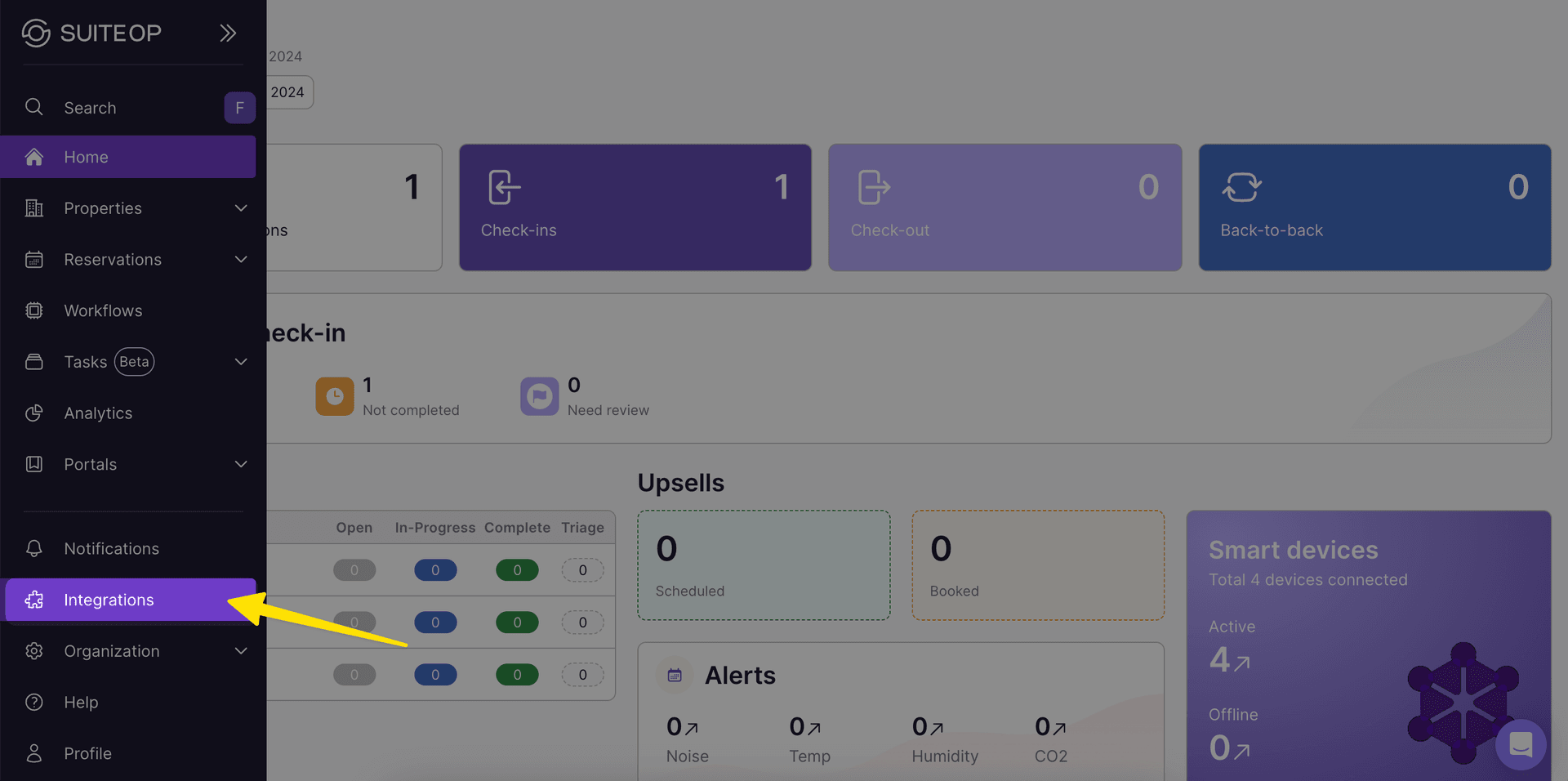
Open the Integrations page
Navigate to Integrations in the sidebar. You will see a list of available integrations organized by category.
-
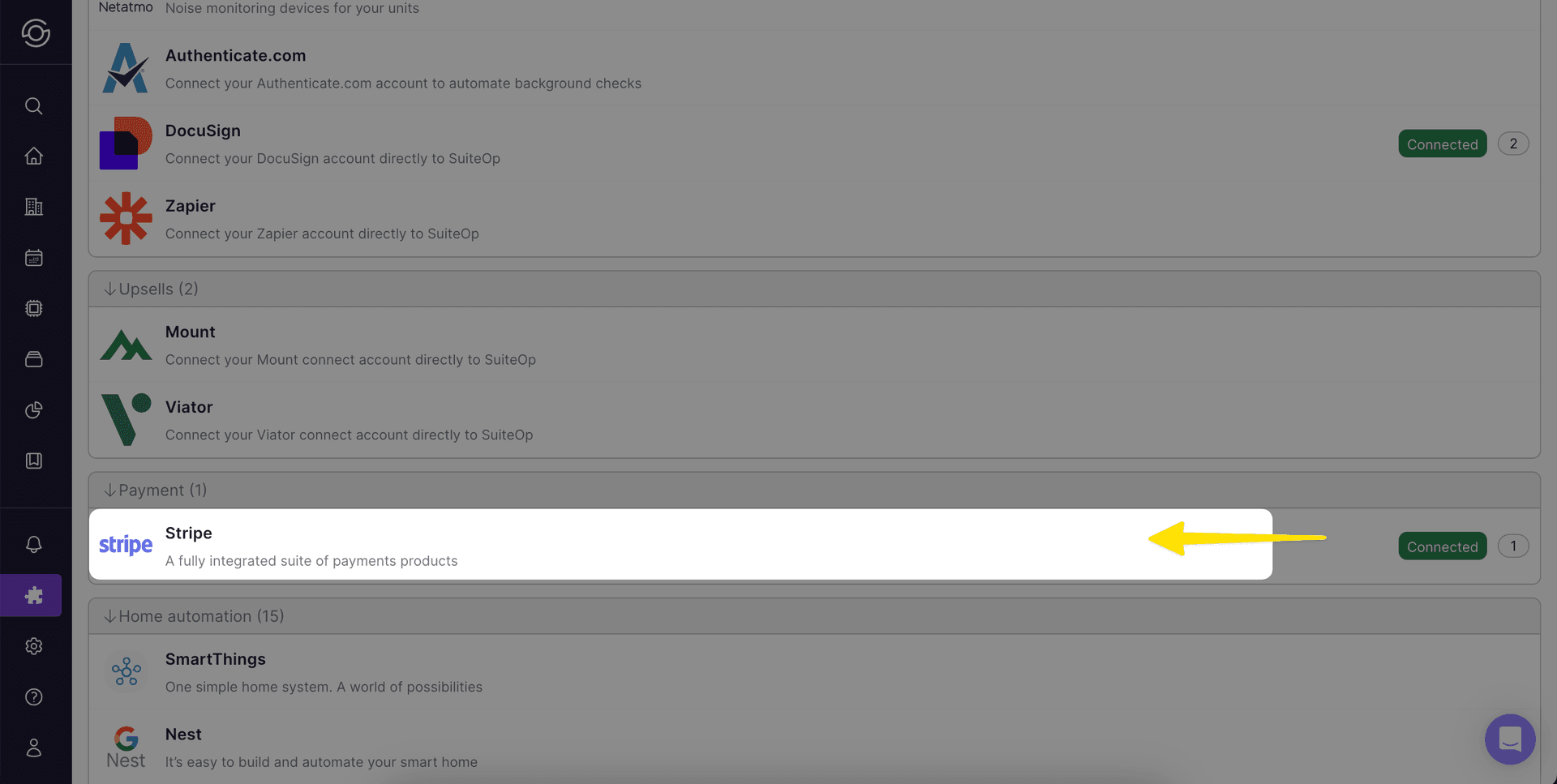
Select Stripe
Find Stripe under the Payment category and click on it.
-
Enter your API keys
You will be prompted to enter your Publishable Key and Secret Key from Stripe.
To find these keys in your Stripe account:
- Log in to the Stripe Dashboard
- Navigate to Developers > API Keys
- Copy the Publishable key (starts with
pk_live_orpk_test_) - Reveal and copy the Secret key (starts with
sk_live_orsk_test_)
-
Complete the connection
Paste both keys into SuiteOp and follow the on-screen prompts. Once complete, you will be redirected back to SuiteOp and the integration status will show as connected.
Configuring Payment Accounts
Section titled “Configuring Payment Accounts”After connecting Stripe, you can set up payment accounts for collecting guest payments. This uses Stripe Connect, which lets your organization receive payments directly. Payment accounts from all providers (Stripe, JusPay, and GuestyPay) are managed in Settings > Payments.
-
Navigate to payment settings
Go to Settings > Payments in the dashboard.
-
Add a payment account
Click Add Payment Account and fill in the required details (account name, currency).
-
Complete Stripe onboarding
You will be redirected to Stripe to complete the onboarding process for your connected account. This includes verifying your business details and bank account information.
-
Return to SuiteOp
Once onboarding is complete, you will be redirected back to SuiteOp. Your payment account is now ready to accept guest payments.
Managing Billing
Section titled “Managing Billing”Organization admins can view and manage billing from Organization > Billing in the sidebar. This page shows:
- Current subscription — Your plan, billing period, and line items
- Payment method — The default card on file (brand, last four digits, expiration)
- Upcoming invoice — A preview of your next charge, including line items and total
- Invoice history — Up to 12 recent invoices with links to download PDFs or view on Stripe
- Billing address — Your organization’s billing address, which syncs to your Stripe customer record
To update your payment method or manage your subscription in more detail, click Manage in Stripe to open the Stripe Customer Portal.
Verifying the Connection
Section titled “Verifying the Connection”After setup, confirm everything is working:
- Go to Organization > Billing and verify your subscription details appear
- Go to Settings > Payments and verify your payment account shows as active
- Optionally, process a small test payment on a reservation to confirm the end-to-end flow
Troubleshooting
Section titled “Troubleshooting”Billing page shows no subscription
Section titled “Billing page shows no subscription”Your organization may not have a Stripe customer linked yet. Contact SuiteOp support to ensure your account is properly provisioned.
Payment account onboarding is incomplete
Section titled “Payment account onboarding is incomplete”If you left the Stripe onboarding flow before completing it, go to Settings > Payments, select the account, and click to resume onboarding. Stripe requires business verification before you can accept payments.
Payments are failing
Section titled “Payments are failing”- Verify your API keys are for the correct mode (live vs. test)
- Check that the payment method on file has not expired
- Review the error details on the reservation’s payment history
Webhook events are not updating subscription status
Section titled “Webhook events are not updating subscription status”SuiteOp listens for Stripe webhook events to keep your subscription status in sync. If your status seems stale, contact support to verify the webhook endpoint is configured correctly in your Stripe Dashboard under Developers > Webhooks.
Related Articles
Section titled “Related Articles”- JusPay Integration — Set up JusPay/Hyperswitch as an alternative payment provider
- GuestyPay Integration — Use Guesty’s built-in payment system
- Creating Upsells — Create upsells and assign payment accounts
- Managing Charges & Payments — Capture, refund, and manage reservation charges