

Portal - Assignment
This tutorial will walk you through the process of assigning upsells, point of interest guides, and properties to your portal. This feature aids guests in acquiring useful information for their stay.
-
Assignment tab
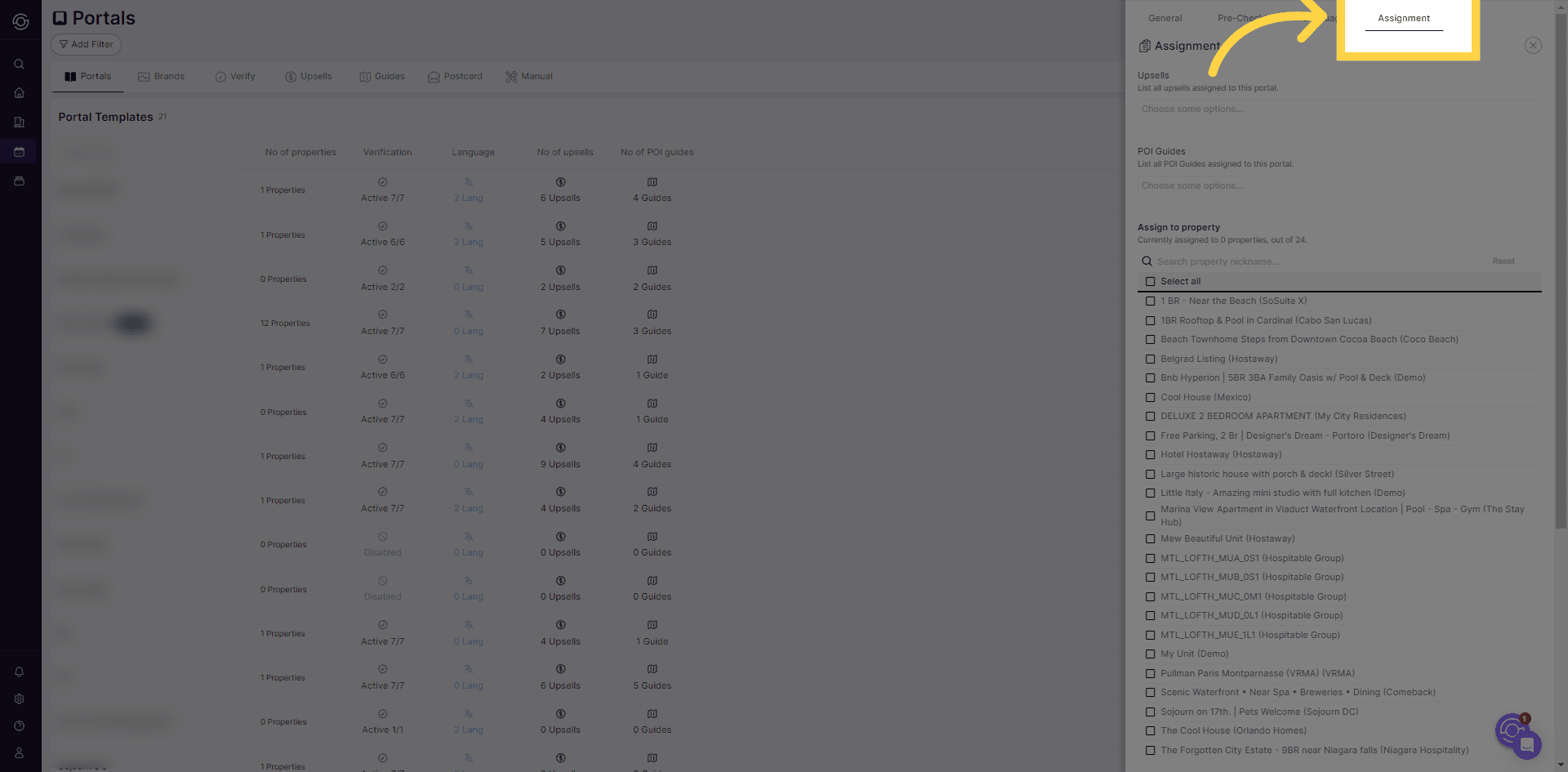
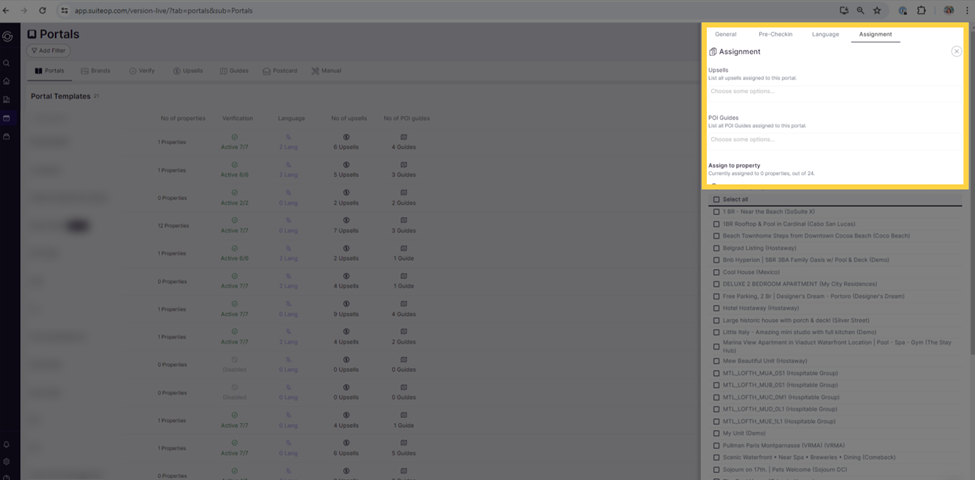
Go to the “Assignment” Tab after selecting a portal. You can configure the list of upsells, P.O.I guides, and properties before assigning them. Details on how to set this up will be covered in a separate tutorial. Furthermore, you can assign multiple items to a portal.
-
Upsells
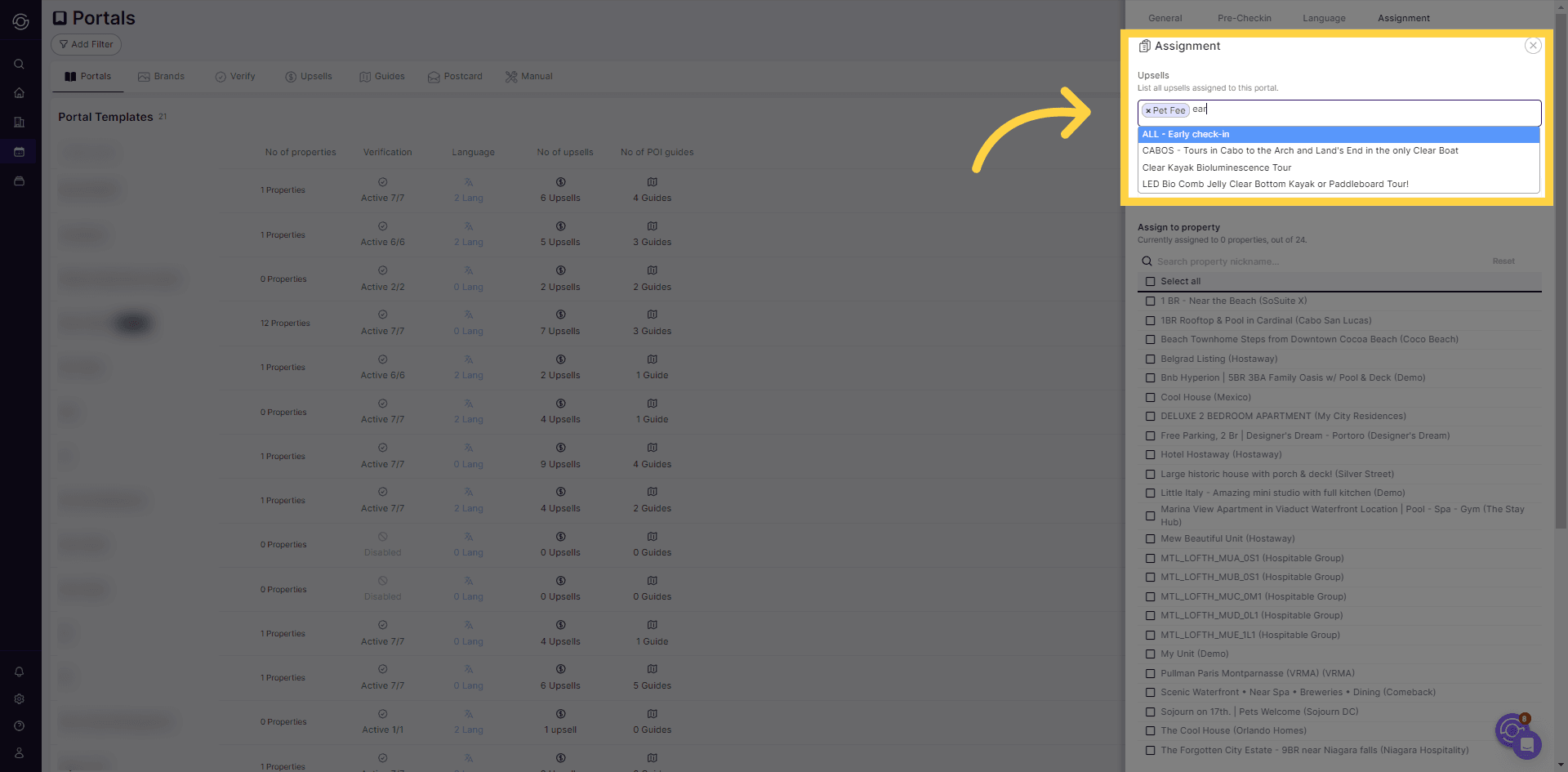
Start by assigning your upsells. Enter a keyword, and a list of upsells matching that keyword will be displayed.
-
P.O.I Guides
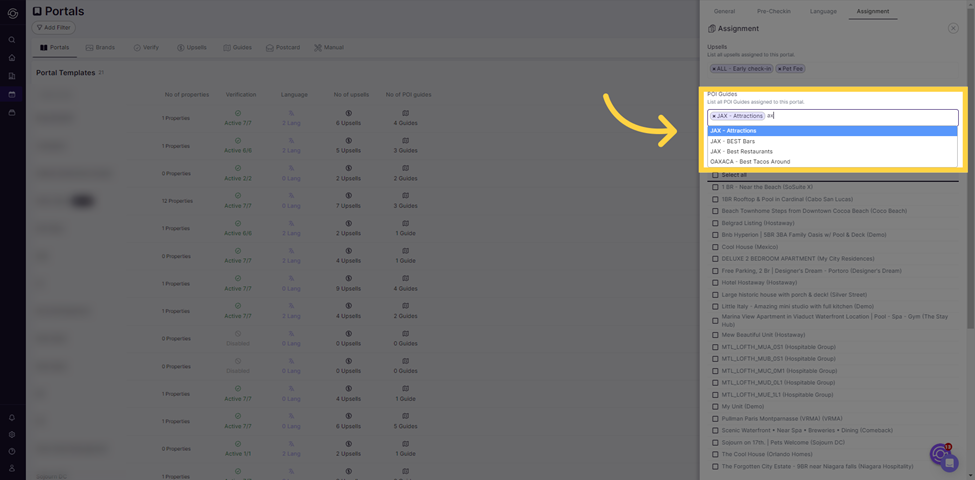
Then, choose your P.O.I. guides.
-
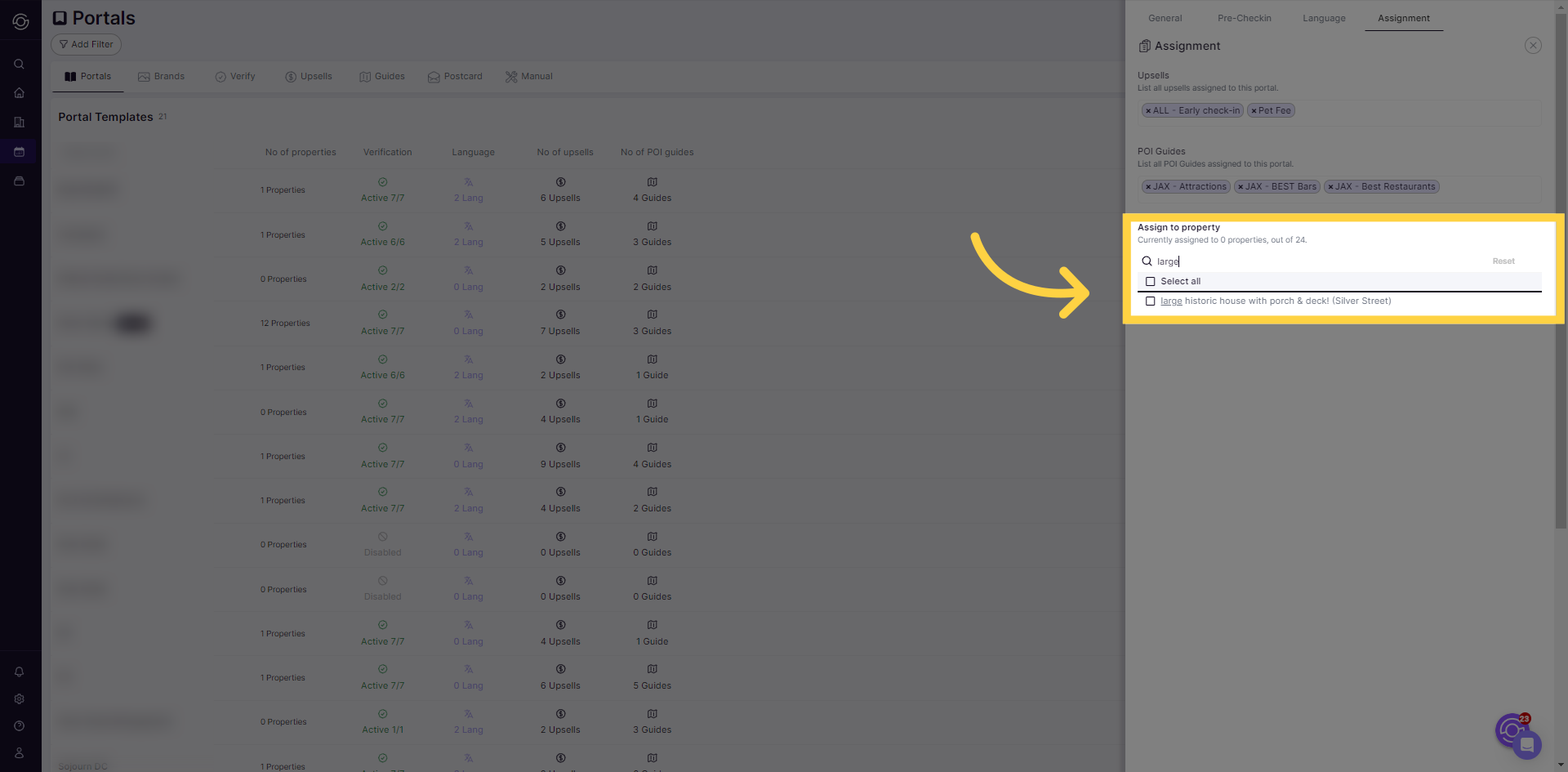
Assign to a Property
Finally, assign your portal to a property.
-
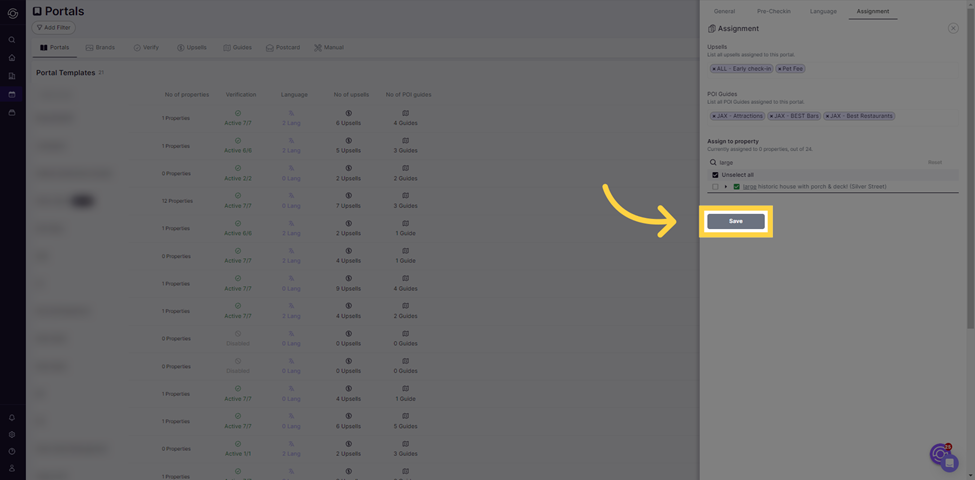
Click “Save”
Click the “Save” button.
Guest View - Upsells
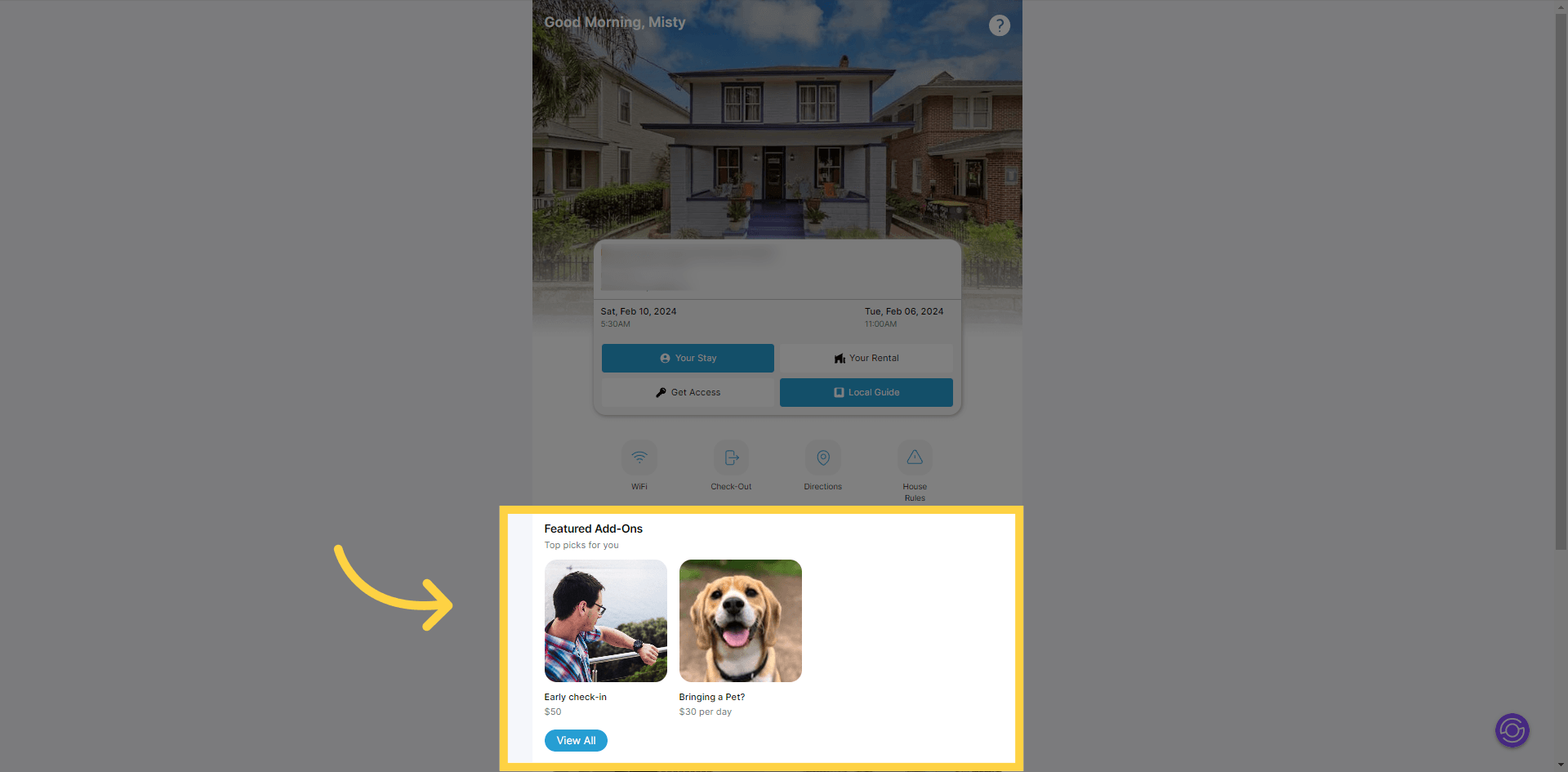
Section titled “Guest View - Upsells”Guests can see the upsells directly on the homepage when viewing the guest portal.
Guest View - “Local Guide”
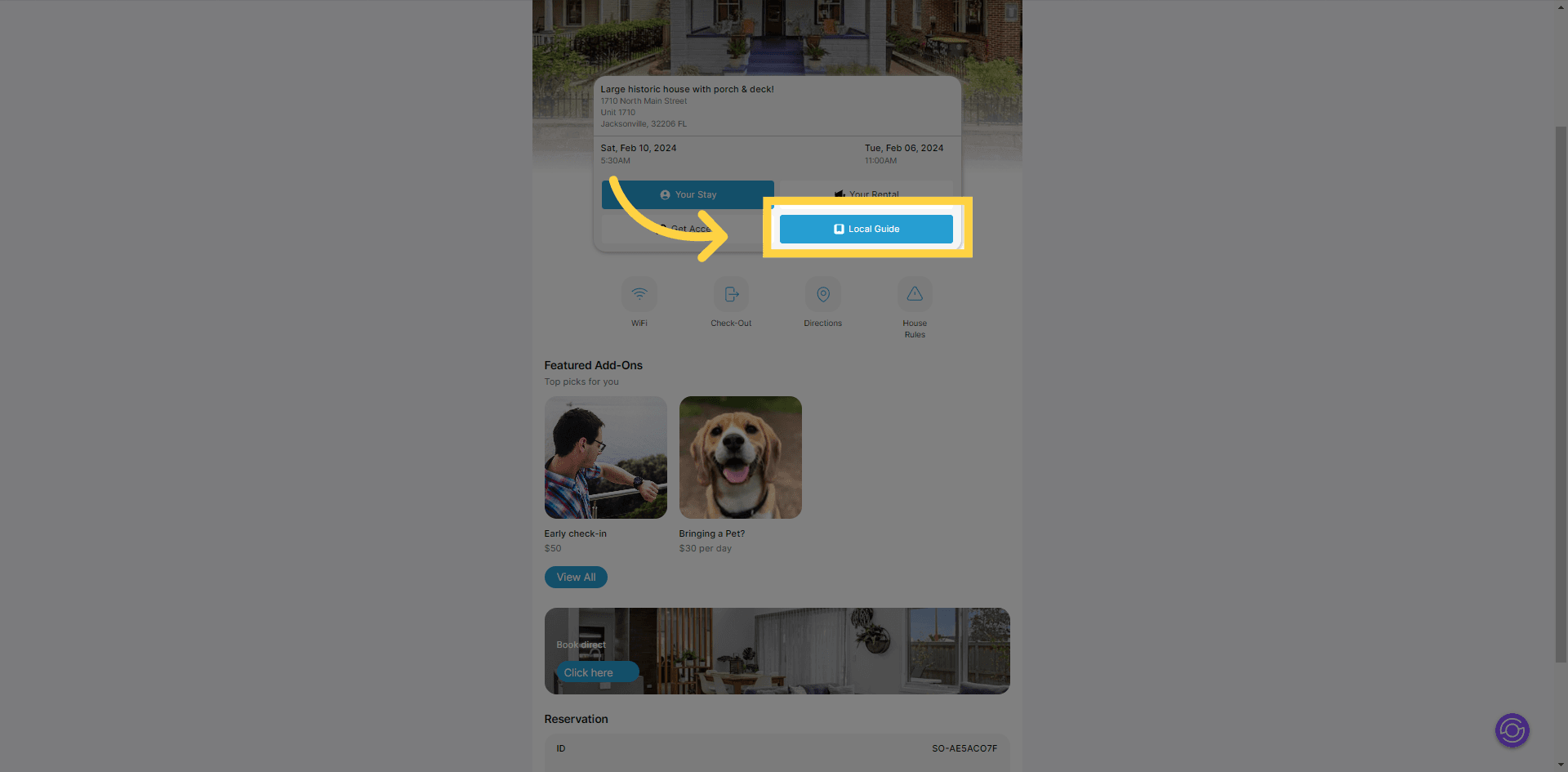
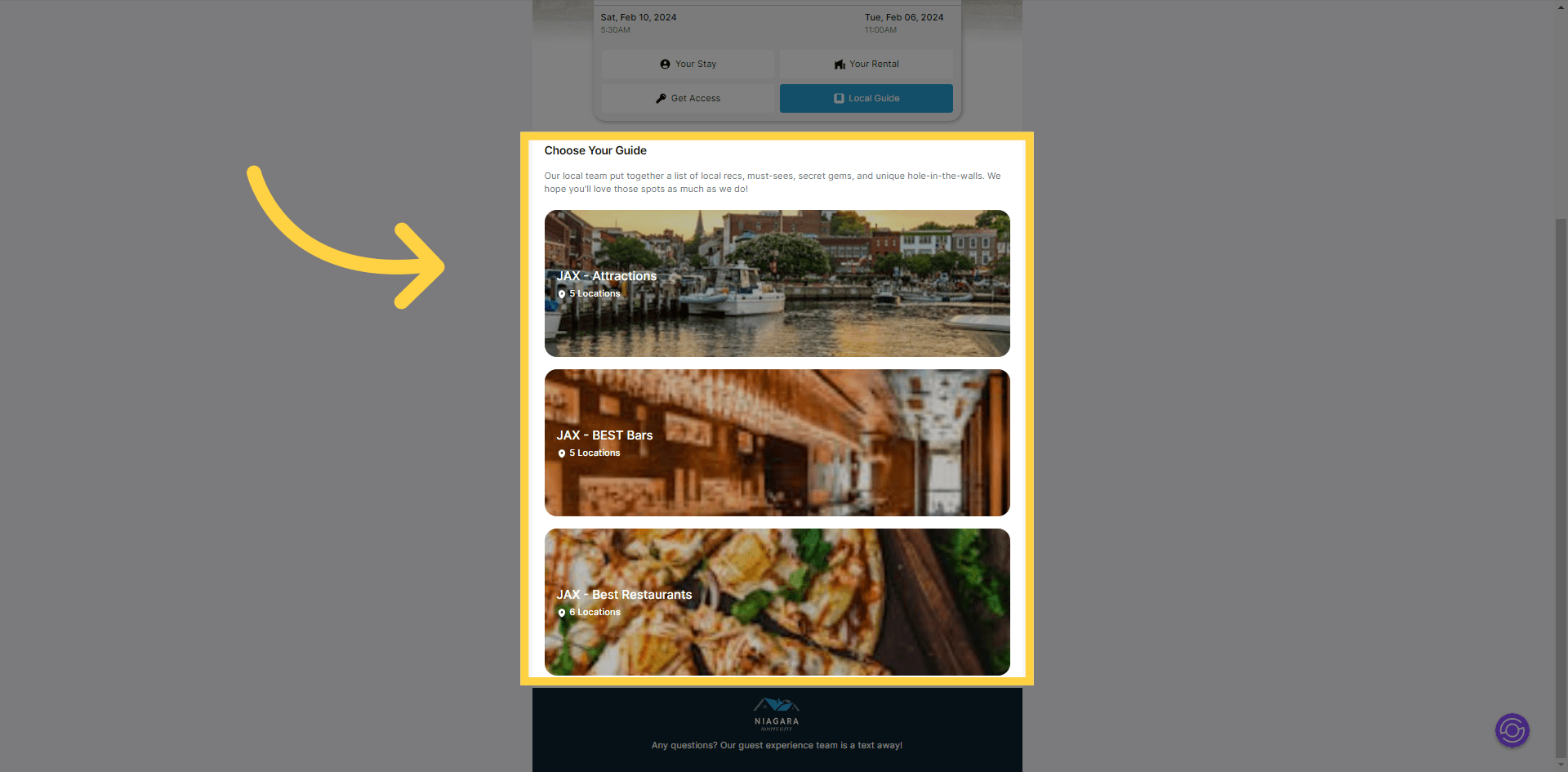
Section titled “Guest View - “Local Guide””To access the P.O.I. guides, simply click on the “Local Guide” button.
Guest View - Guidebooks
Section titled “Guest View - Guidebooks”The page will redirect to the list of guidebooks assigned to the portal.
The guide offers a detailed walkthrough on assigning upsells, POI guides, and properties to a portal. This feature is a great tool for generating extra revenue and furnishing guests with additional information, enhancing their overall stay experience.