How to Setup Property Access Instructions
Setting up your property access instructions is vital to guests being able to easily enter the unit. There are a few steps to get the most out of SuiteOp’s instructions including the Check-in Summary, Check-in steps, and Check-out steps. Below we’ll explain how to add each!
Where to add property check-in & out instructions
Section titled “Where to add property check-in & out instructions”To get to property access settings use the following steps:
-
Open the property from the Properties page
-
Click the Settings tab
-
Click the Instructions tab
Setting your code type
Section titled “Setting your code type”In SuiteOp, property owners can configure access codes for each listing. Here are the types of access codes available:
-
Dynamic: Use this option for smart locks managed by SuiteOp. You’ll be prompted to enter the symbol used after the code on your specific lock, such as a check mark or lock symbol. You can even use emojis!
-
Fixed: Select this option for fixed codes that remain the same, or for locks that use a lockbox or manual key.
-
Import: Choose this if you have smart locks managed by another system. We will import the code from your Property Management System (PMS) and display it in the guest portal.** Property Code:**This code serves as a backup to confirm or validate the personal access code.
Check-in summary
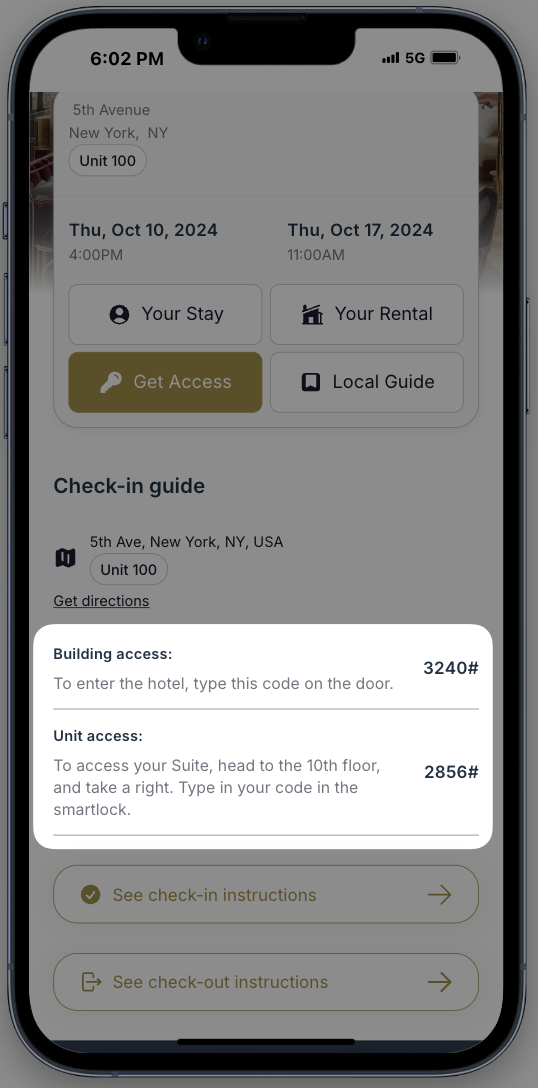
Section titled “Check-in summary”You can set up a Check-in Summary to be displayed in the Access section of the guest portal. You need to set a unit level summary on each property, and optionally you can create the Building access summary at the group level, or override this per property. This is a good place for a building code or gate coded needed before the door code.
Check-in instruction steps
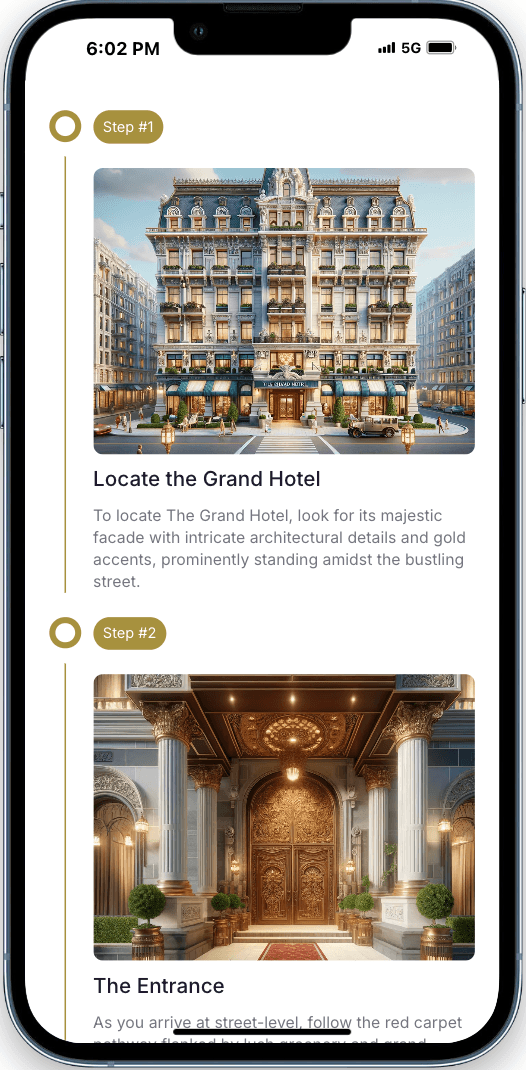
Section titled “Check-in instruction steps”The check-in instructions will show as step-by-step guide to help guests access the property, without bothering you with questions! Check-in instruction steps should be detailed and include photos of the property.
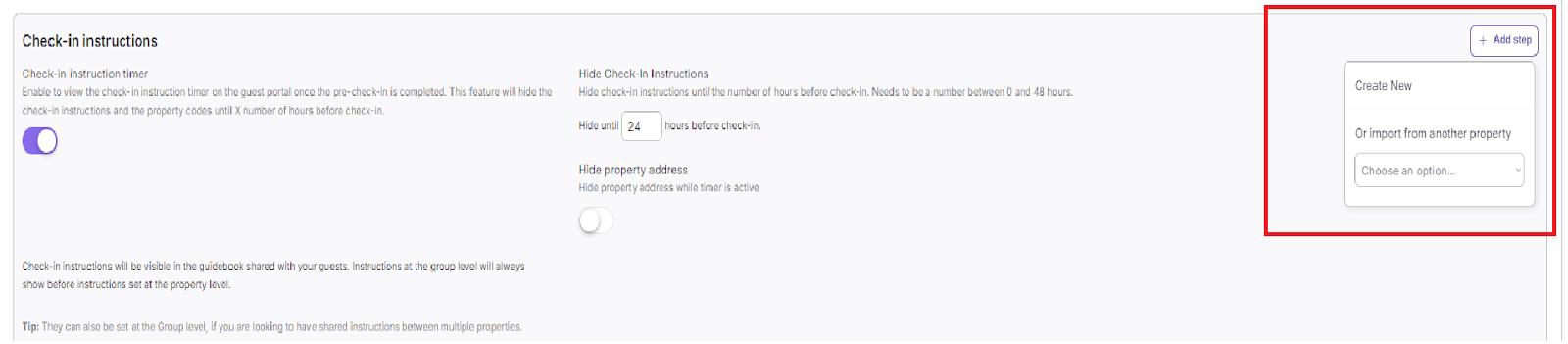
- Click “Add Step” : Users can either create a new step or import steps from existing properties.
-
Create a New Step Upload a cover photo—ideally, use an image relevant to the step, such as the property’s façade.
-
Enter a short description of the step.
-
Provide detailed instructions in the description field.
-
Add an instructional video link (if available).
-
Enable Smart Access to display the access code in the guest portal.
-
Connect to a Smart Lock.
-
Import a Step If many of your instructions across properties are similar you can also use the Import from another property button here:
Select the property from which you want to import a step.
- After selecting the property, available steps will be displayed as options.
Recommended check-in steps
Section titled “Recommended check-in steps”To facilitate a smooth guest check-in experience, we have some recommendations for types of steps to include in your check-in instructions.
-
Finding the Property Add a photo of the property and any details guests have trouble with. Is there a hidden road to turn down that people often miss? Is there a red barn when you make the final right turn? Add any details that are relevant for the property.
-
Parking Add a photo of where they should park. If guests typically arrive by car, parking instructions are helpful to include here to consult when they’re arriving.
-
Head to the Entrance Include a photo of the door that should be used. This is helpful if there is more than one door, or the entrance is hard to find.
-
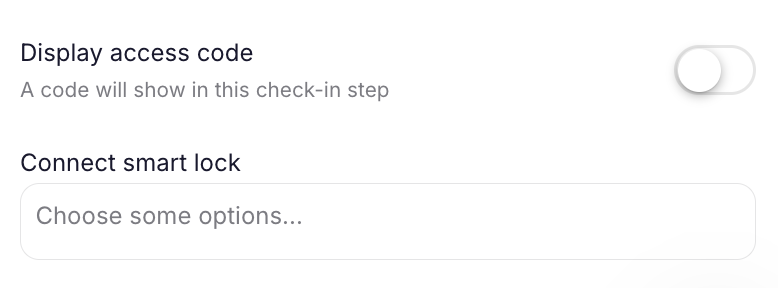
Enter the code Add a photo of the lock or lockbox. Here you can turn on the setting “Display access code” and then choose to display the dynamic code or fixed code. If you have a smart lock connected to the property, choosing it in the “Connect smart lock” section will enable the Tap to unlock feature.
-
Check-out instructions steps
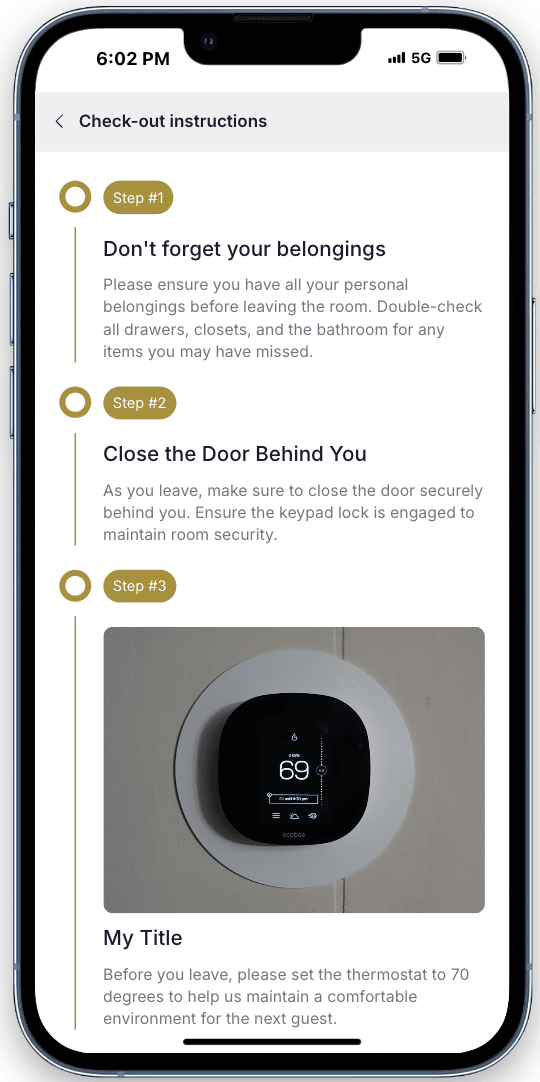
Section titled “Check-out instructions steps”Check-out instructions are created the same way as check-in instructions. You can both create new or import from an existing property. If your properties all use the same check-in instructions you can set these at the group level to make management easier.
Building (Group) level instructions
Section titled “Building (Group) level instructions”Some properties might have two entrances, a common entrance such as a lobby, and a unit entrance. For this reason we have Building level instructions that can be set at a group level. Any instructions added to a group will be appended before the property instructions in the guest portal.
-
Navigate to Properties Page
-
Opposite to the Group name, click on the gear icon
-
Under Access Tab, set up the code type, building code and check-in summary.
-
Set up the instructions:
Click “Add Step” : Users can either create a new step or import steps from existing complex or group.
-
Create a New Step or Import from Another Group Upload a cover photo—ideally, use an image relevant to the step, such as the property’s façade.
-
Enter a short description of the step.
-
Provide detailed instructions in the description field.
-
Add an instructional video link (if available).
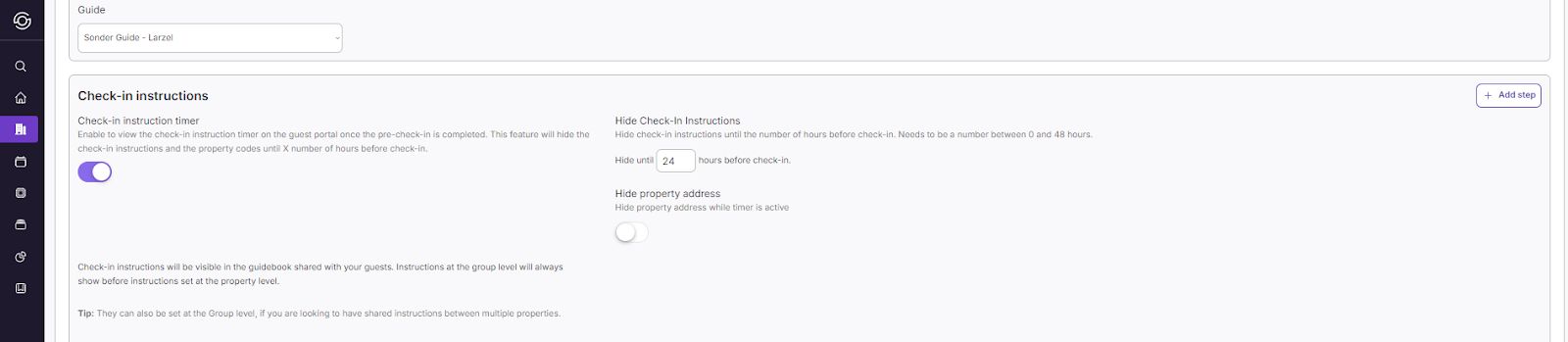
How to block check-in details until X hours before a stay
Section titled “How to block check-in details until X hours before a stay”In the property instructions you have the ability to turn on a check-in timer. This will prevent the check-in instructions from being seen by guests until a set number of hours before check-in. You can also choose to hide the property address. The guest will see a countdown timer until X hours before check-in on the guest portal once the pre-check-in process is completed.