

Enable the check-in instructions dynamic timer
This guide will walk you through the steps to enable the dynamic timer for check-in instructions in SuiteOp. By following these instructions, you will be able to display the check-in instruction timer on the guest portal after the pre-check-in is completed.
This ensures that guests can only view the access details within a specified time frame leading up to their scheduled check-in, offering you peace of mind that guests won’t be able to enter before the timer.
💡This is especially helpful if you have properties without smartlocks for which you do not want to share entry details too early.
-
Go to SuiteOp
Go to dash.suiteop.com
-
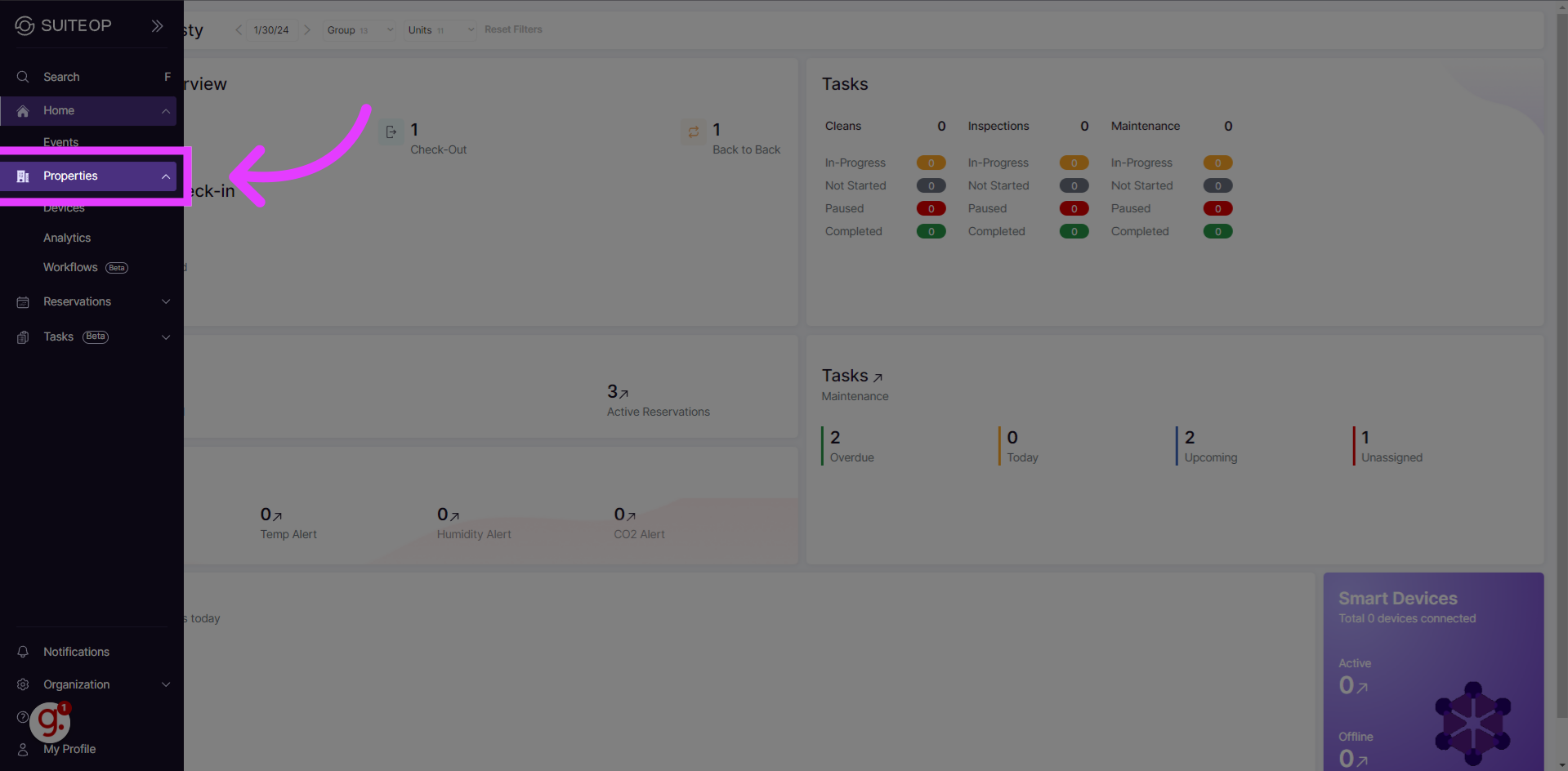
Click “Properties”
Navigate to the “Properties” section in the application.
-
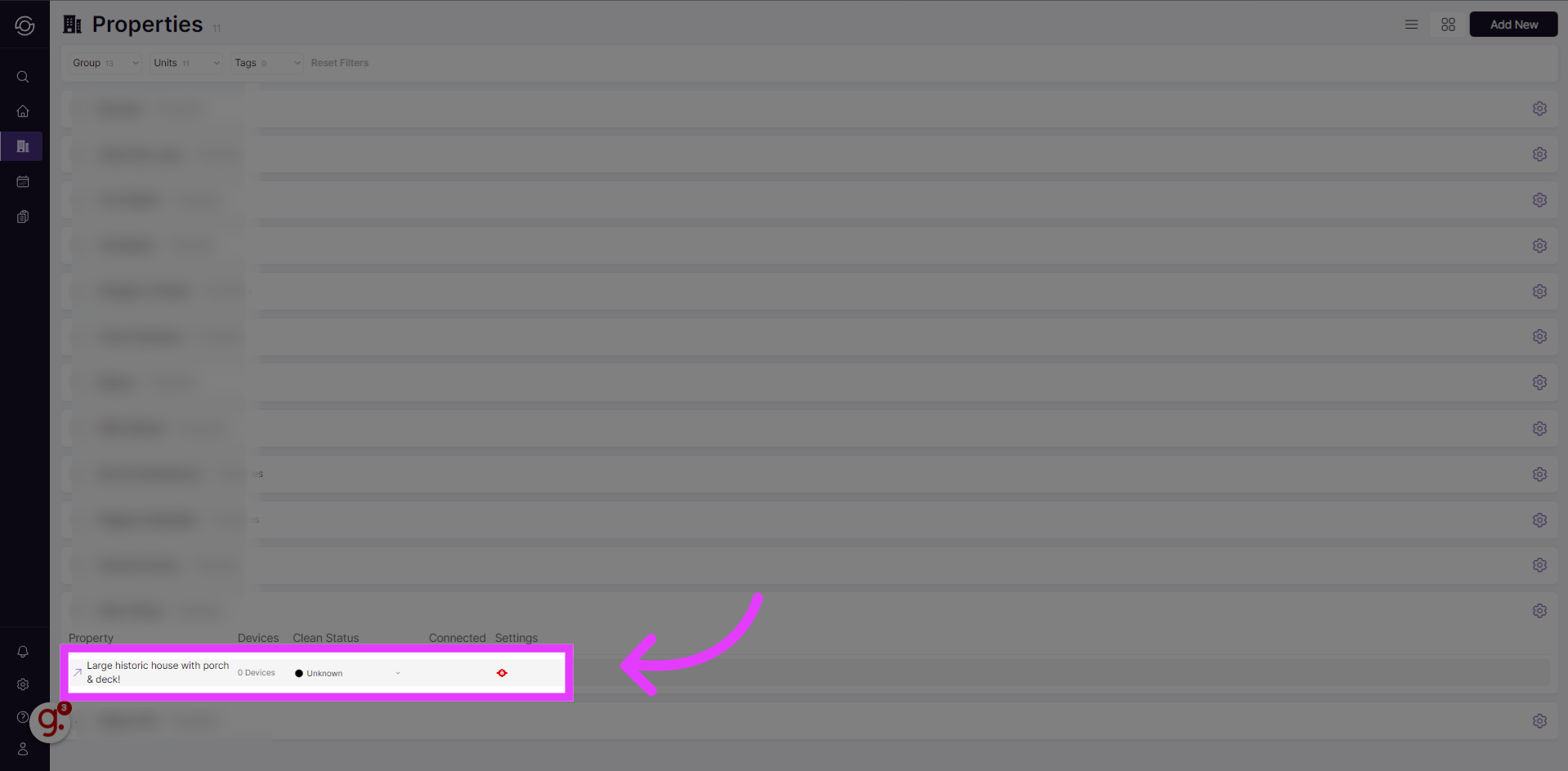
Select the Property
Select the Property
-
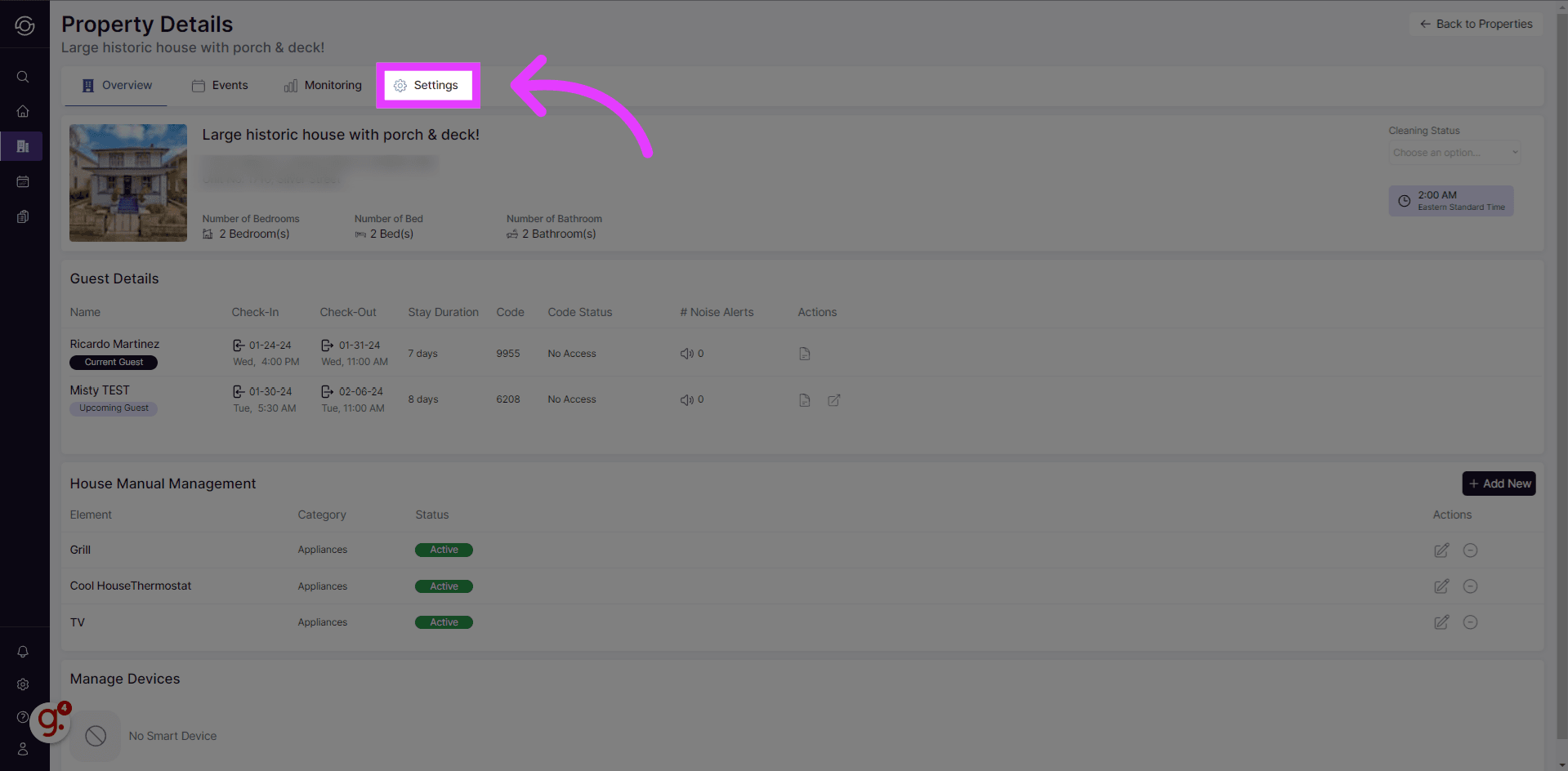
Click “Settings”
Open the “Settings” menu in the application.
-
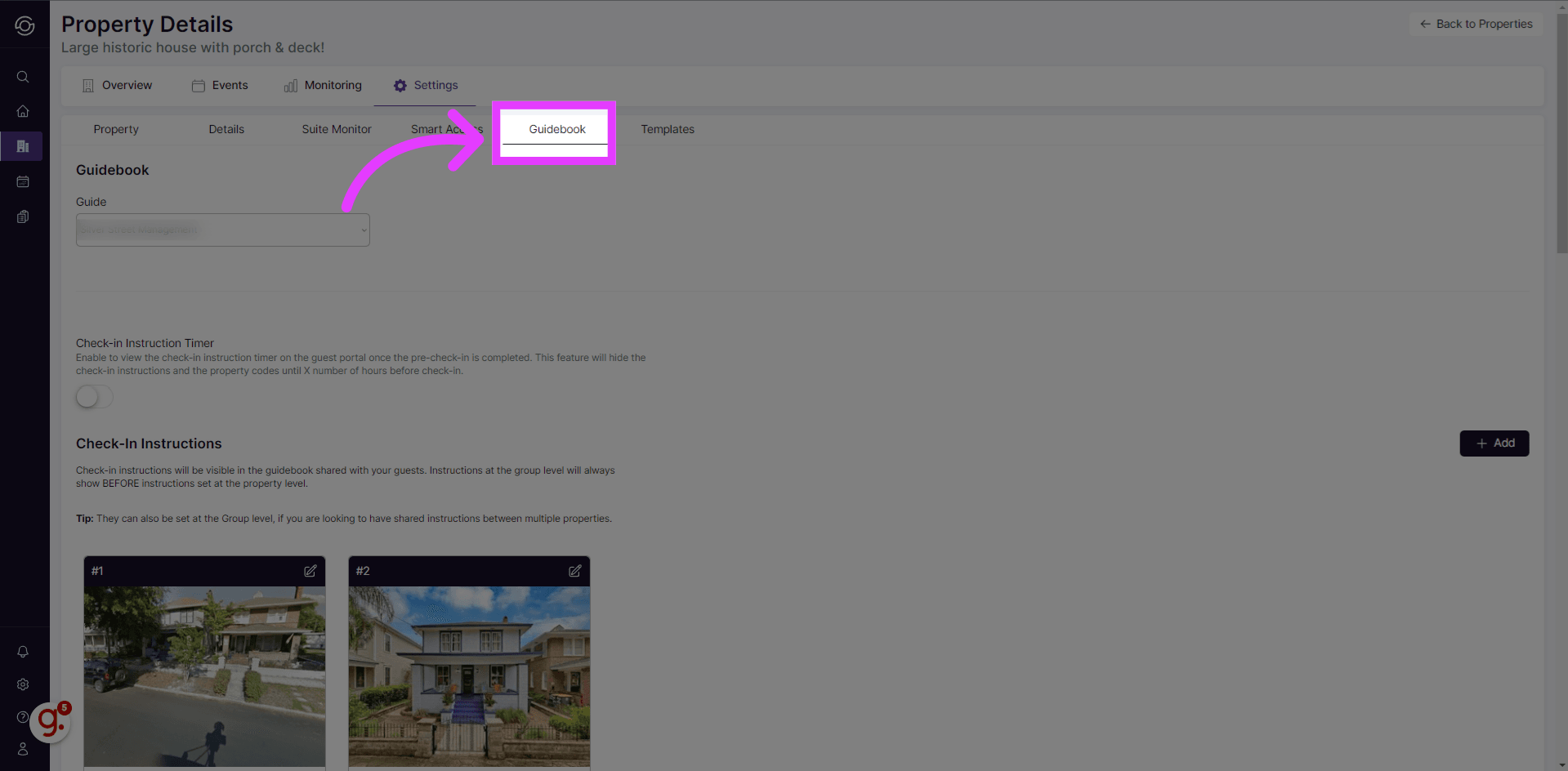
Click on Guidebook Tab
Click on Guidebook Tab
-
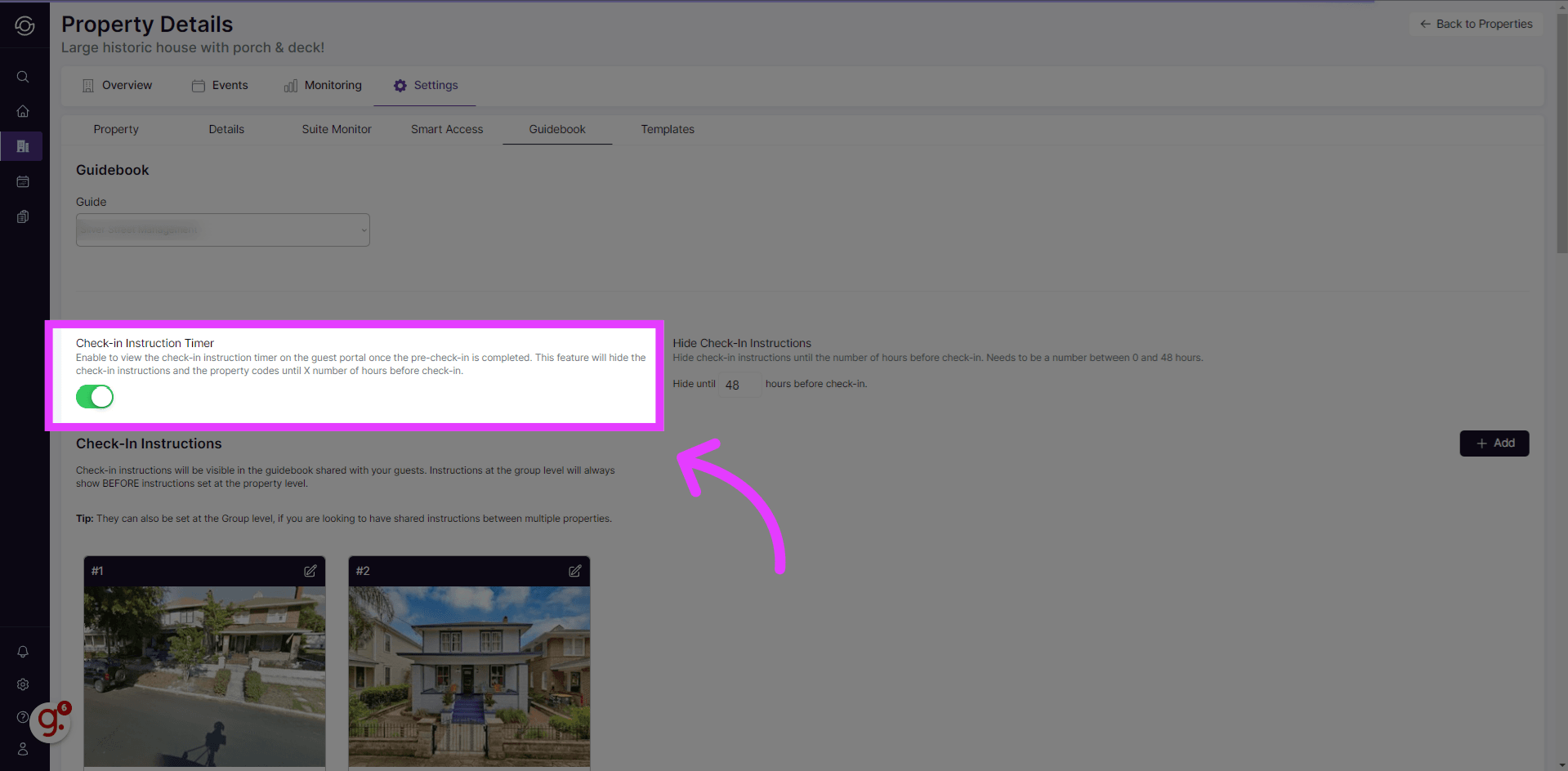
Enable the check-in instruction timer
Enable the check-in instruction timer
-
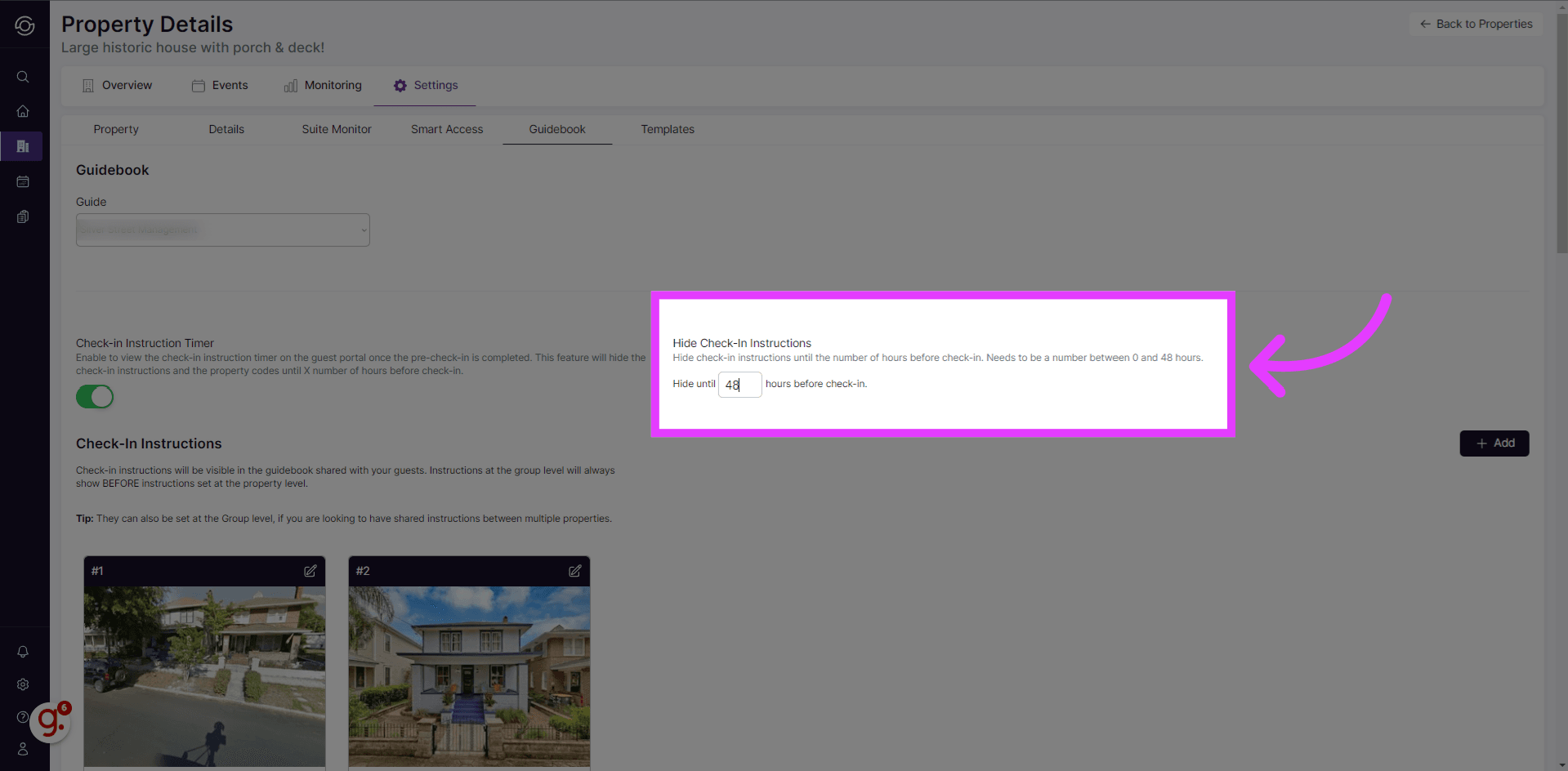
Set the timer duration between 0 and 48 hours
Set the timer duration between 0 and 48 hours
-
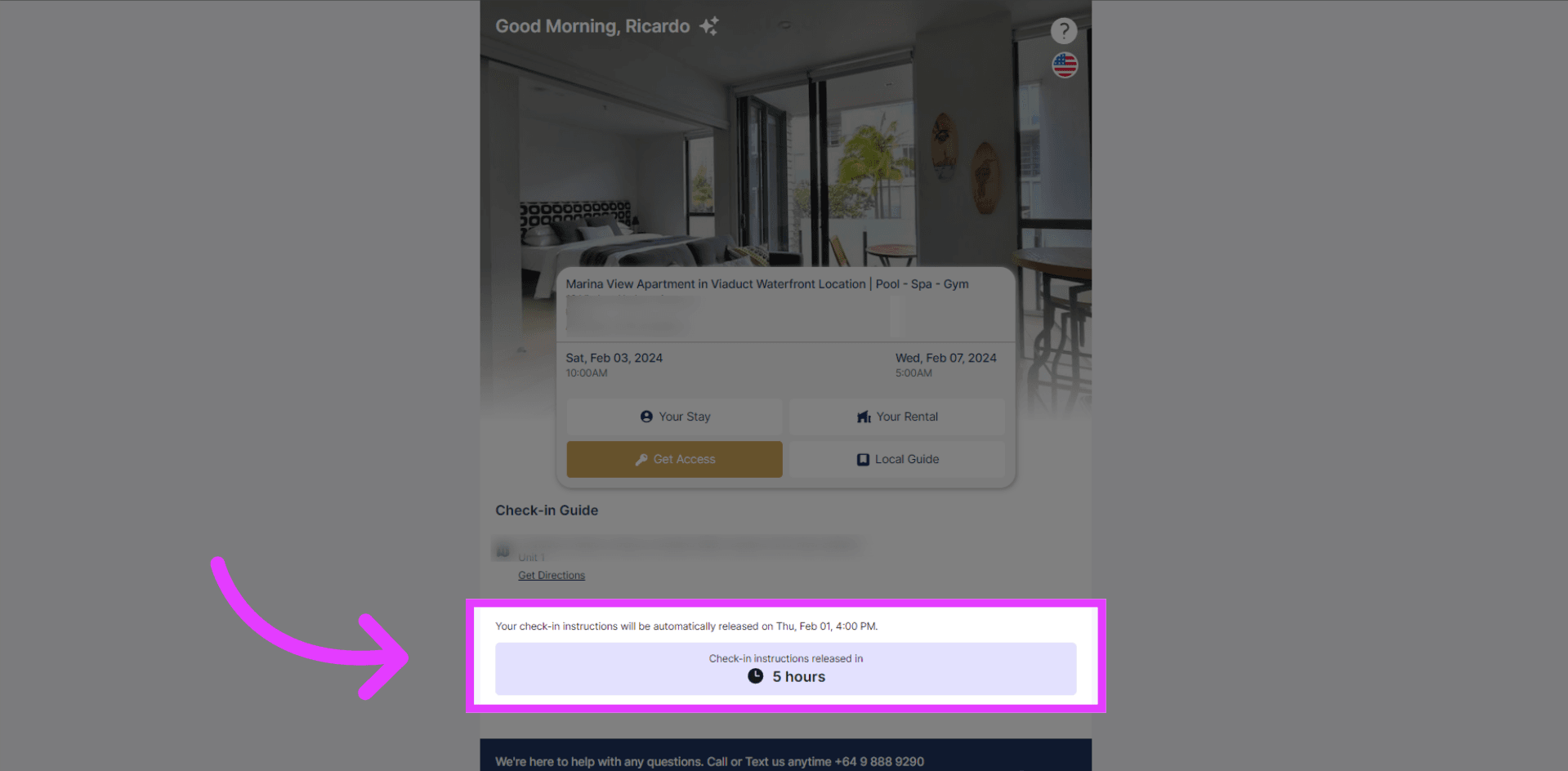
Verify the timer on the guest portal
From the end-user perspective, the timer for the check-in instructions will show on the guest portal.
This guide covered the steps to enable the dynamic timer for check-in instructions in SuiteOp. Whether or not you use a smart lock, this feature is a fun way to create excitement about the stay with a timer leading up to the check-in date.