

Hostaway: How to connect your Hostaway account to SuiteOp
Learn how to seamlessly integrate your Hostaway account to SuiteOp with these detailed instructions. From initiating the connection to adding new properties, this guide will walk you through the process efficiently.
-
Go to Hostaway
Go to dashboard.hostaway.com
-
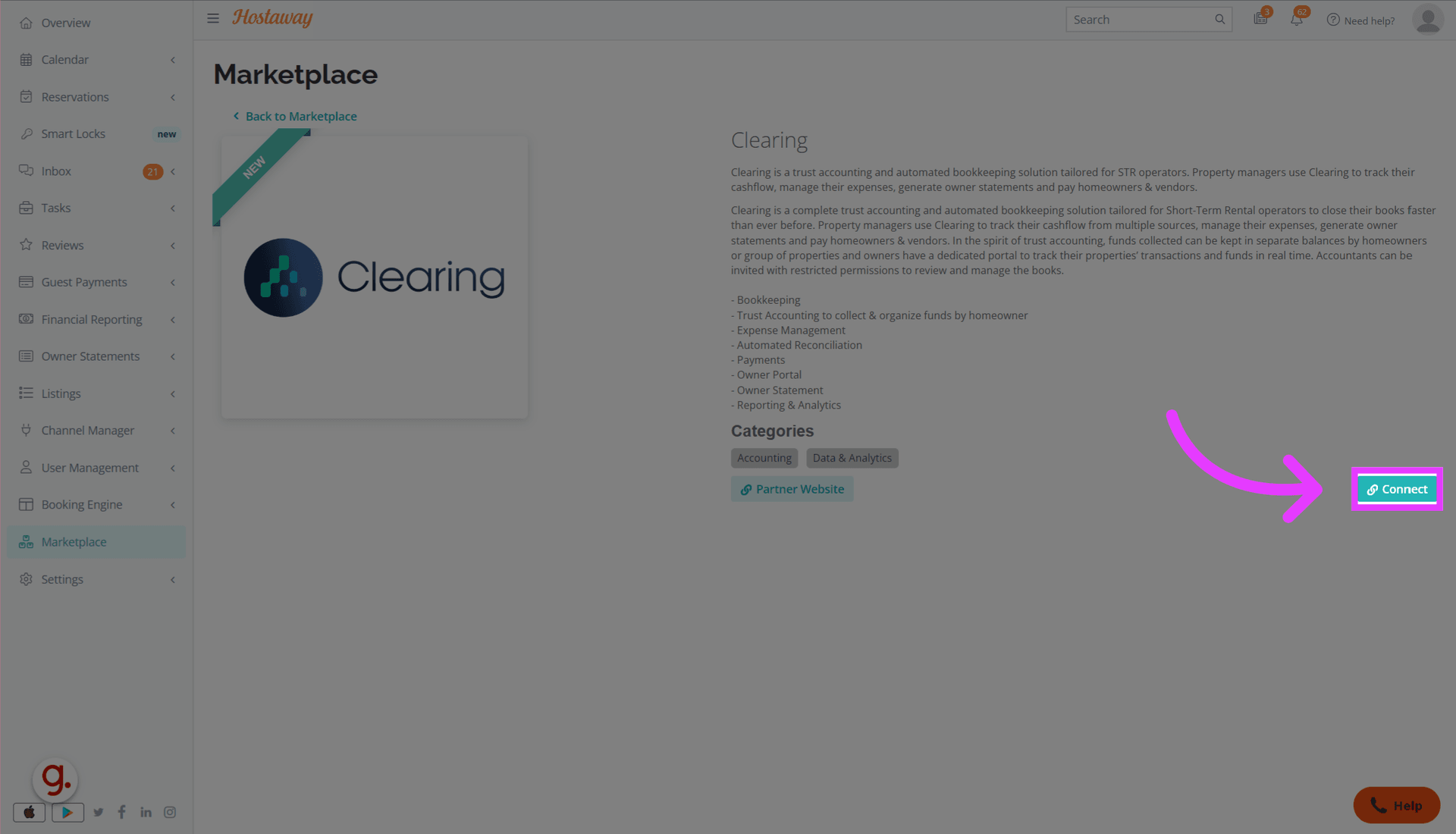
Click “Connect”
In the hostaway marketplace, look for SuiteOp and click on Connect to initiate the connection process.
-
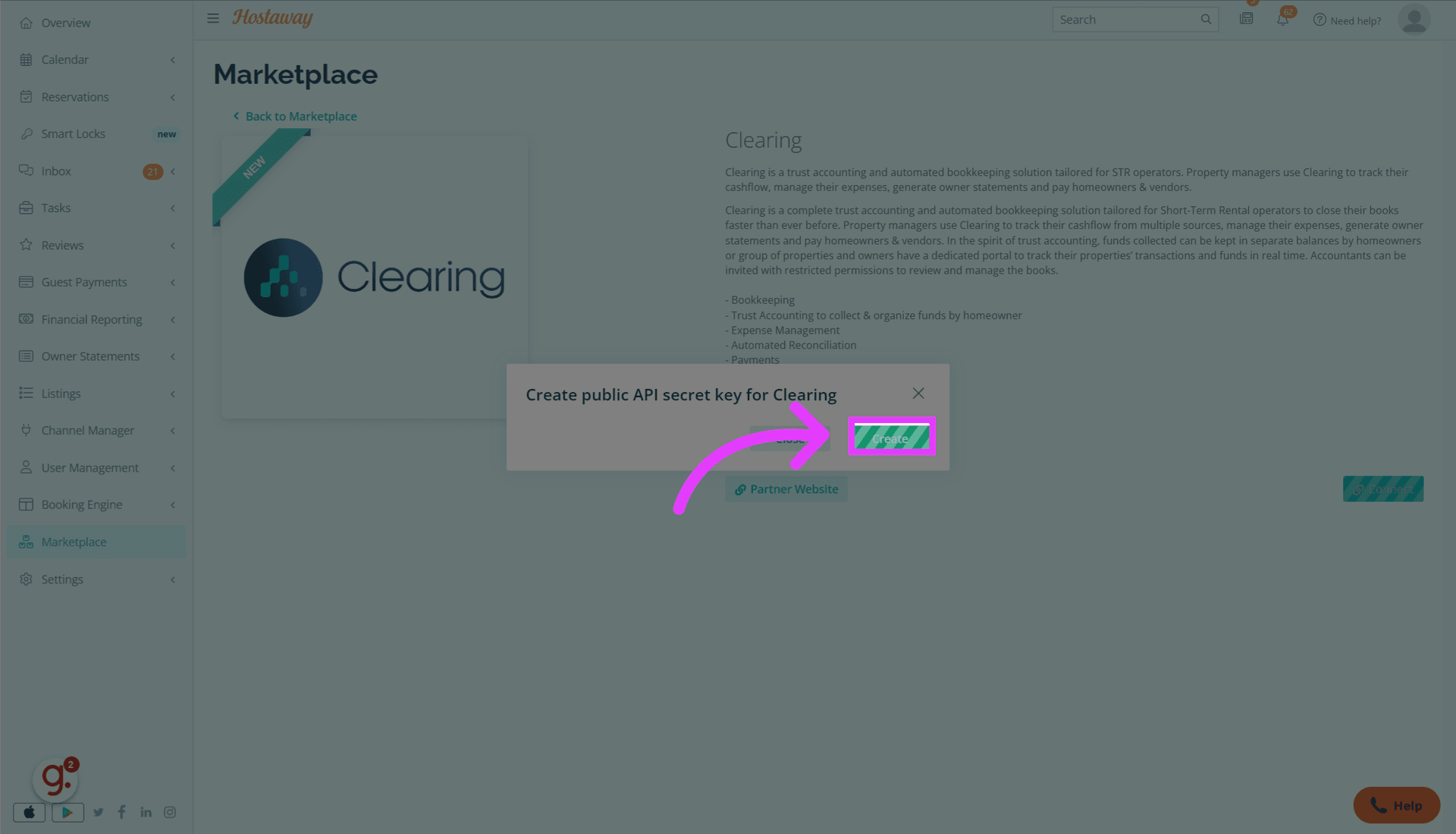
Click “Create”
Click “Create” to create a new API client and key in Hostaway for SuiteOp
-
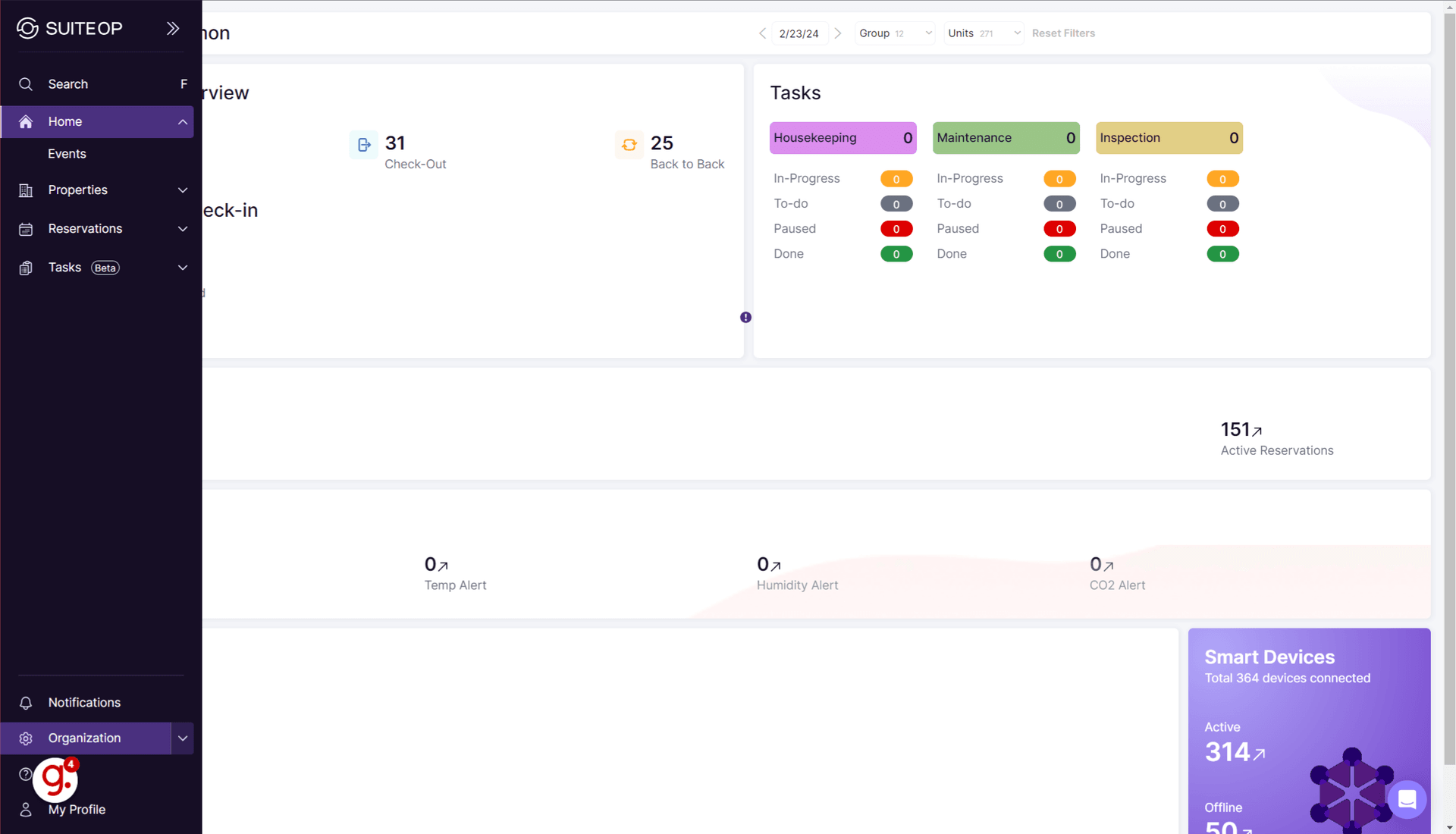
Switch to SuiteOp
Switch to the SuiteOp App
-
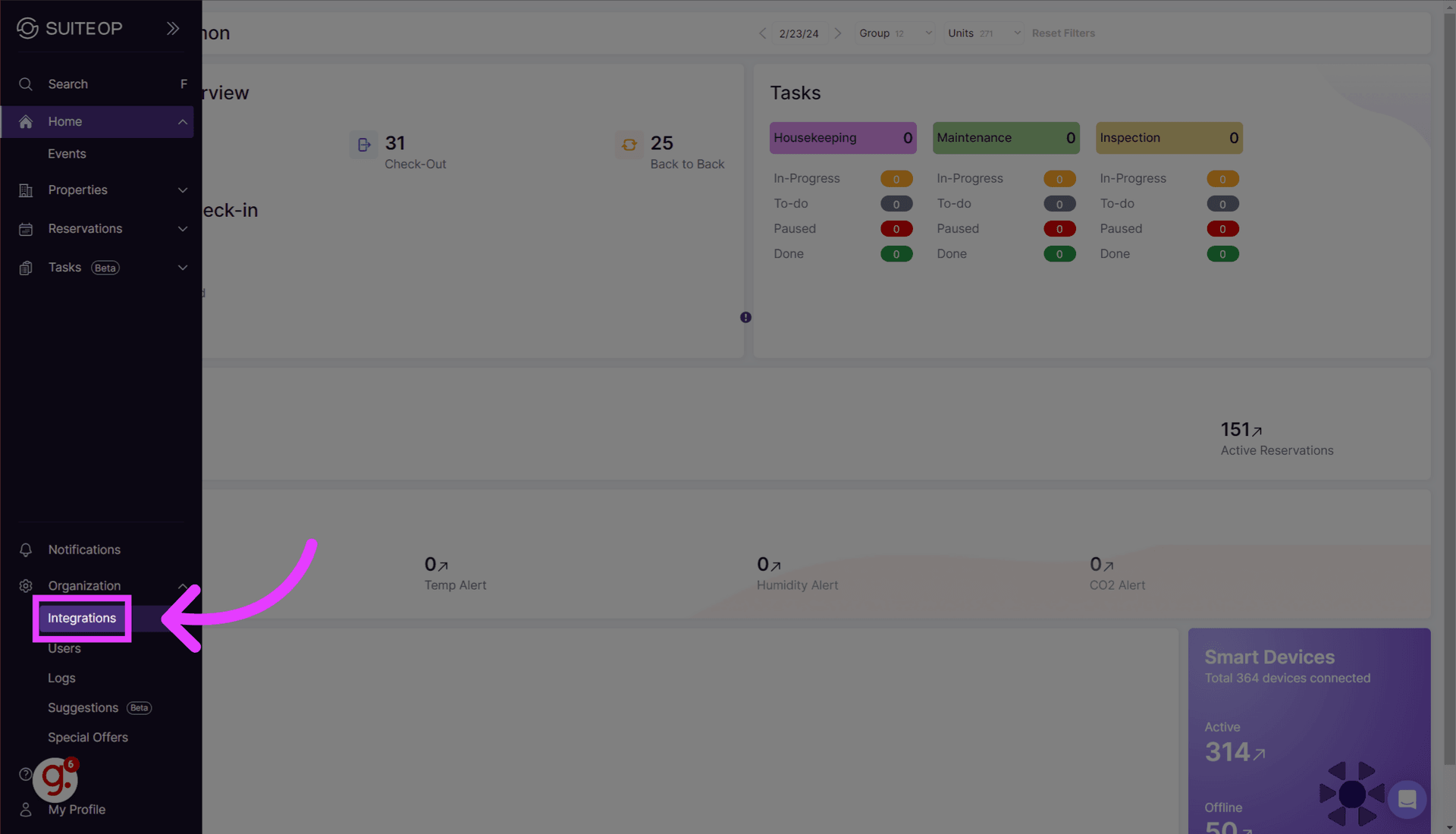
Click “Integrations”
Navigate to the Integrations section.
-
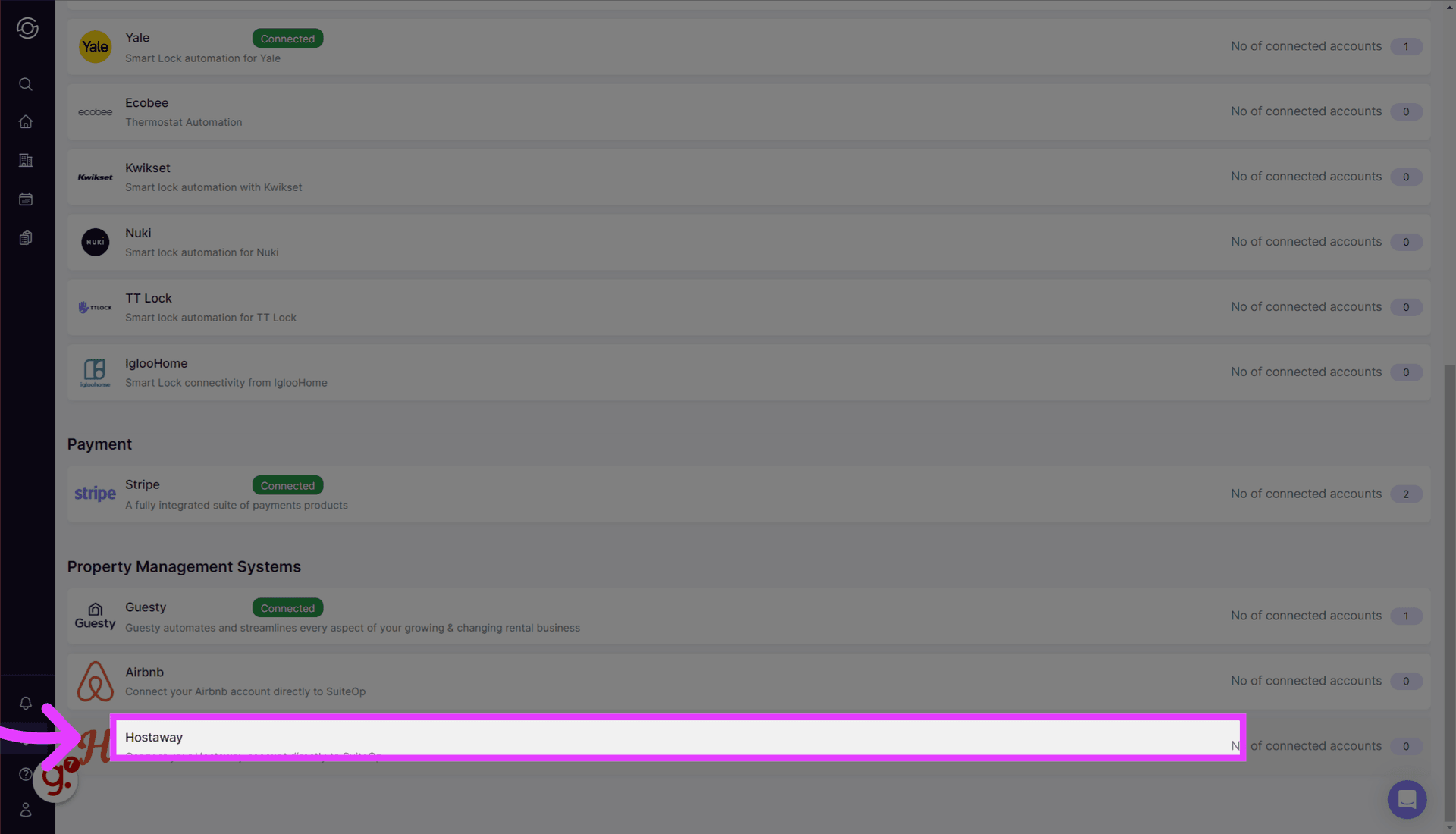
Click “Hostaway”
Select Hostaway
-
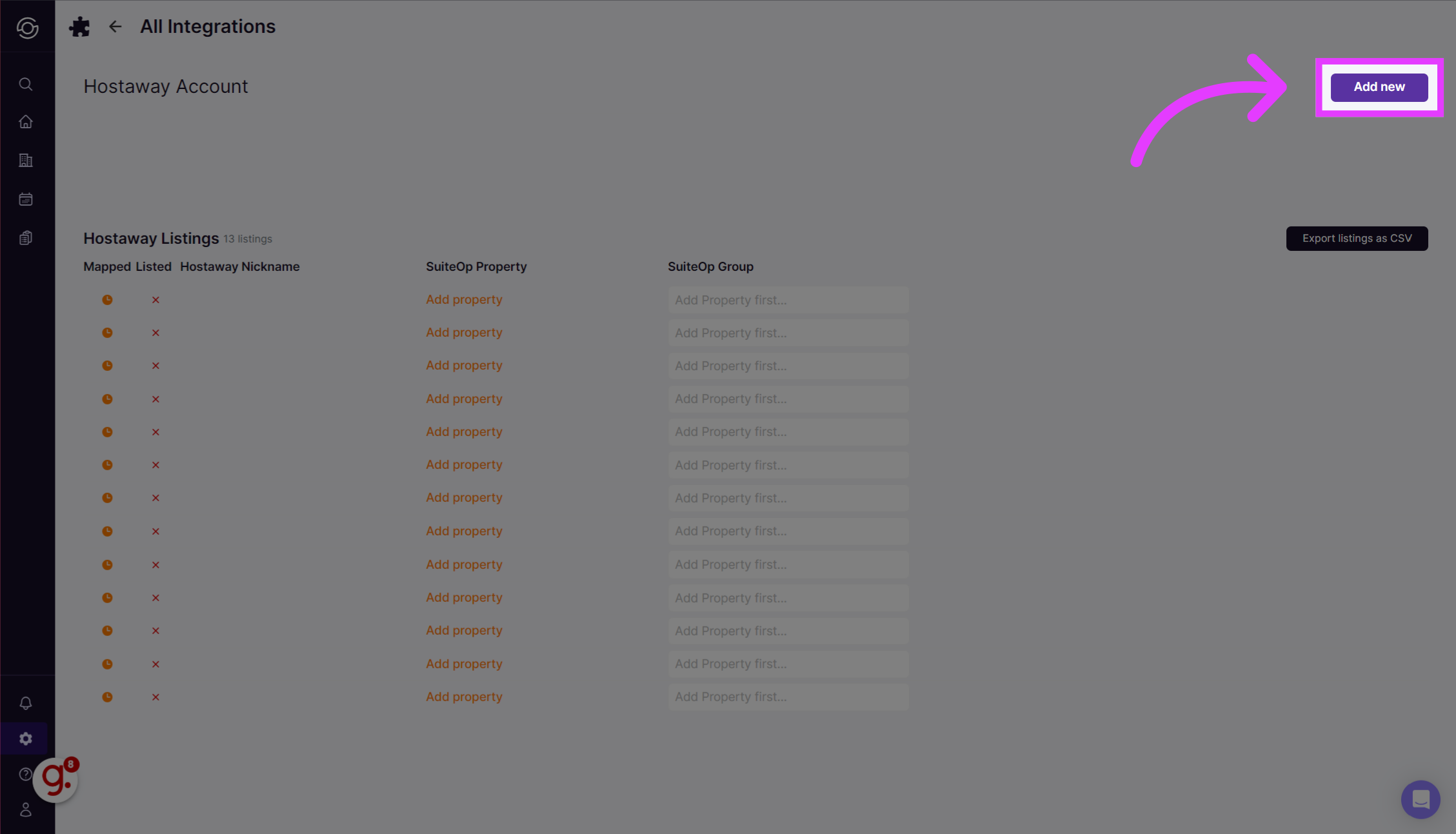
Click “Add new”
To add the API client and key from Hostaway
-
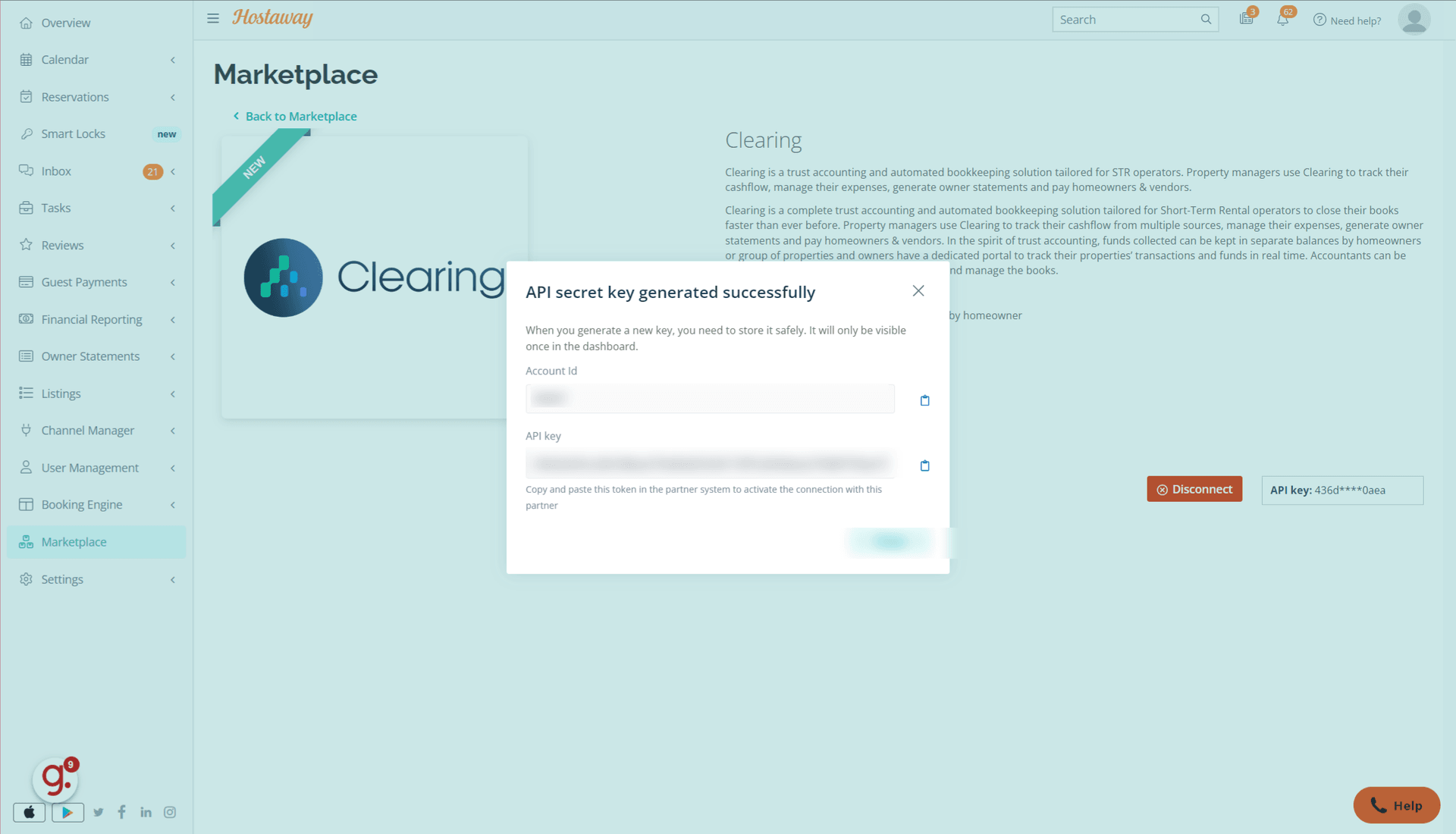
Get the Account ID and API Key
Copy the Account ID and API Key from Hostaway
-
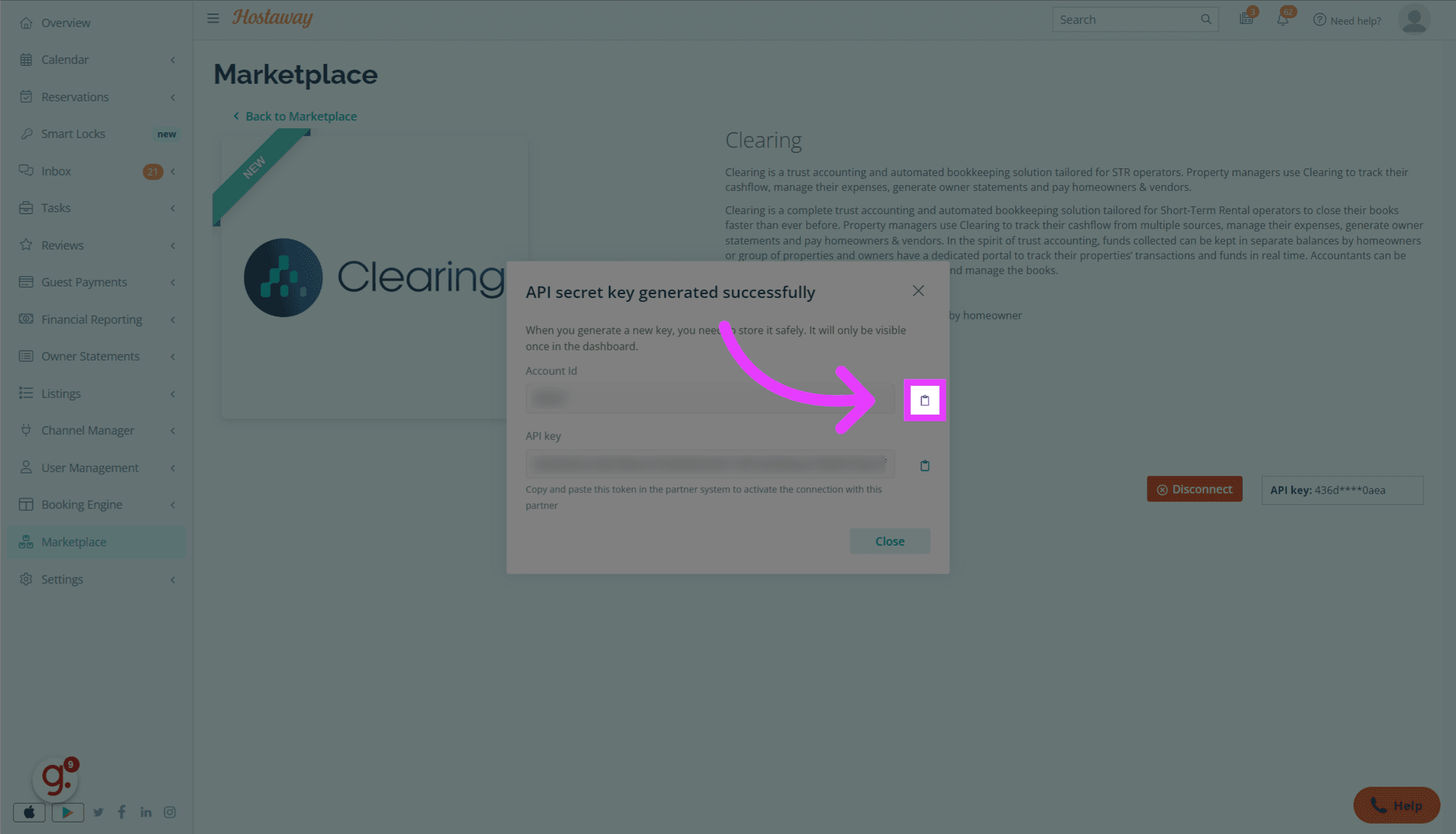
Copy the Account ID
Click the copy icon
-
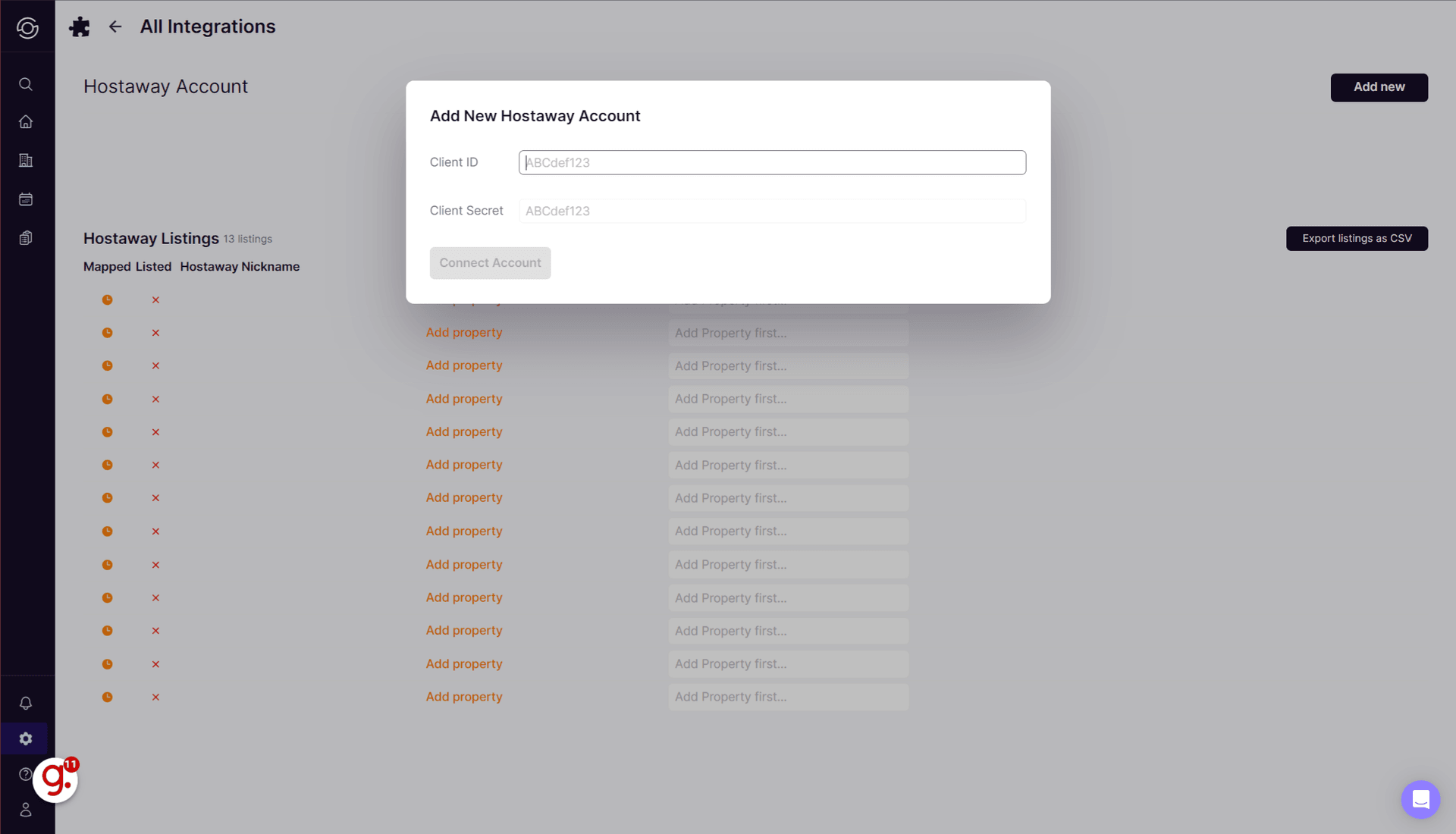
Paste the Account ID in SuiteOp
Paste the Account ID in what SuiteOp calls the Client ID field
-
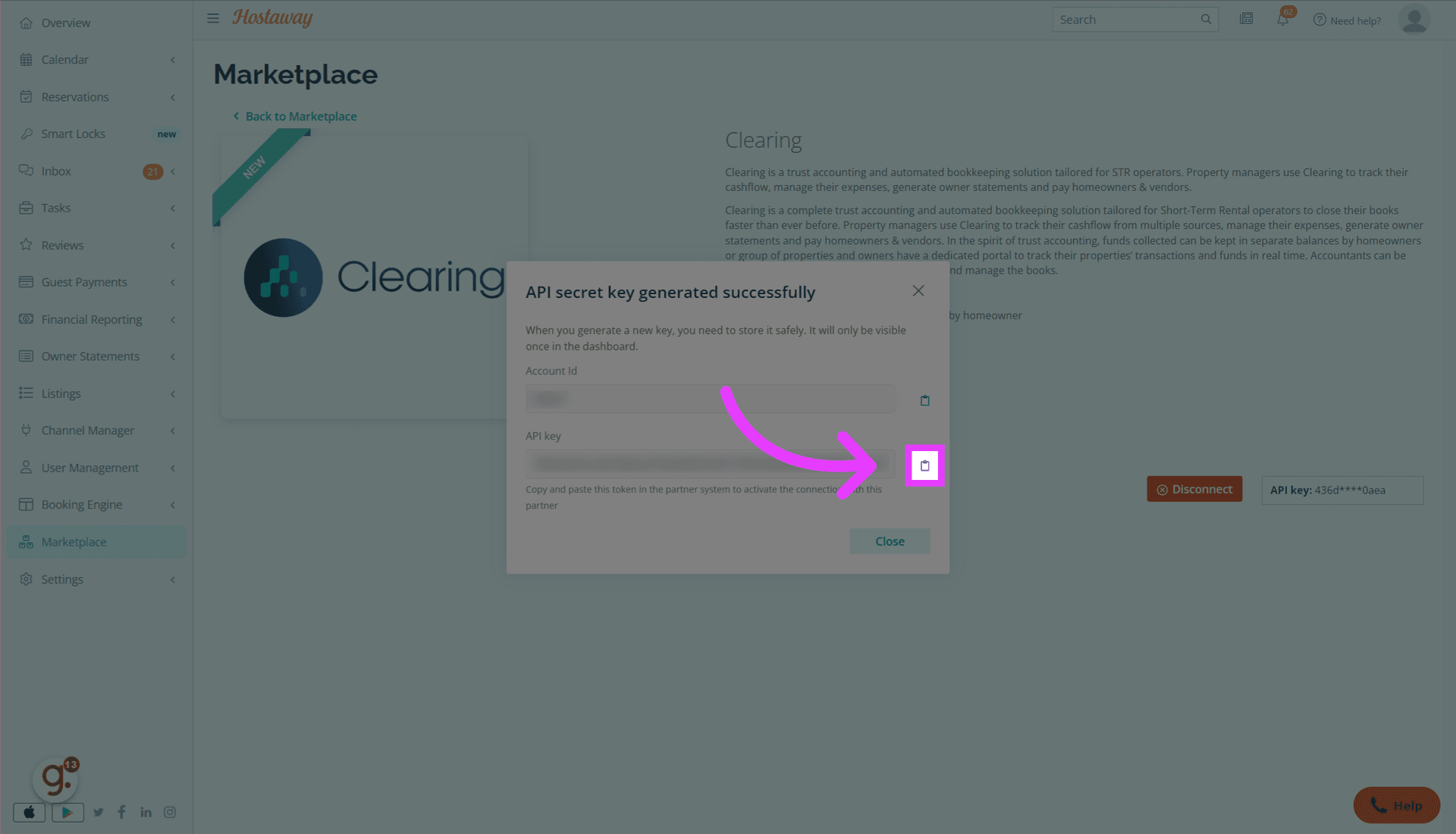
Copy the API key
Click the copy icon
-
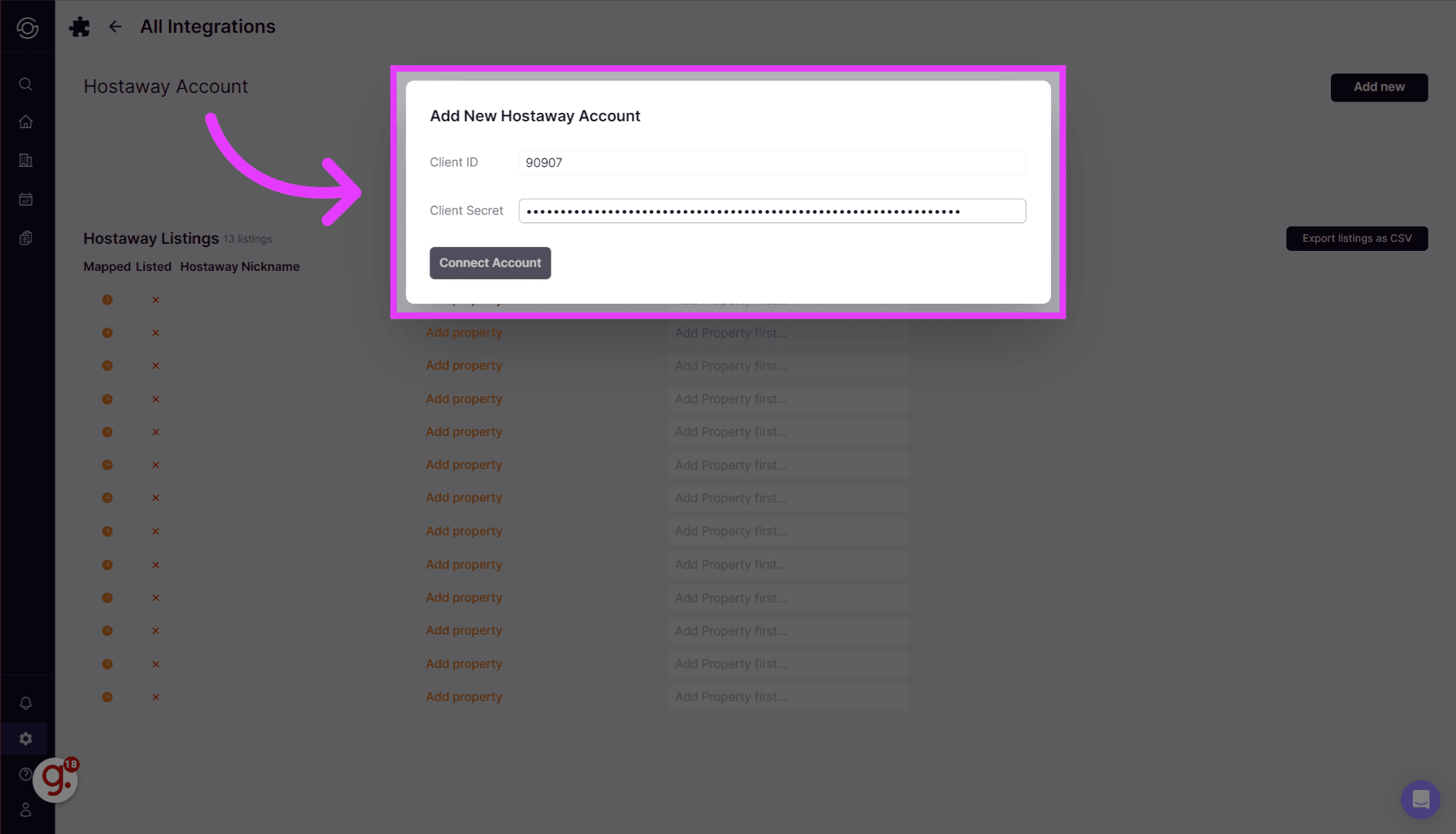
Paste the API Key in SuiteOp
Paste the API Key in what SuiteOp calls the Client Secret field
-
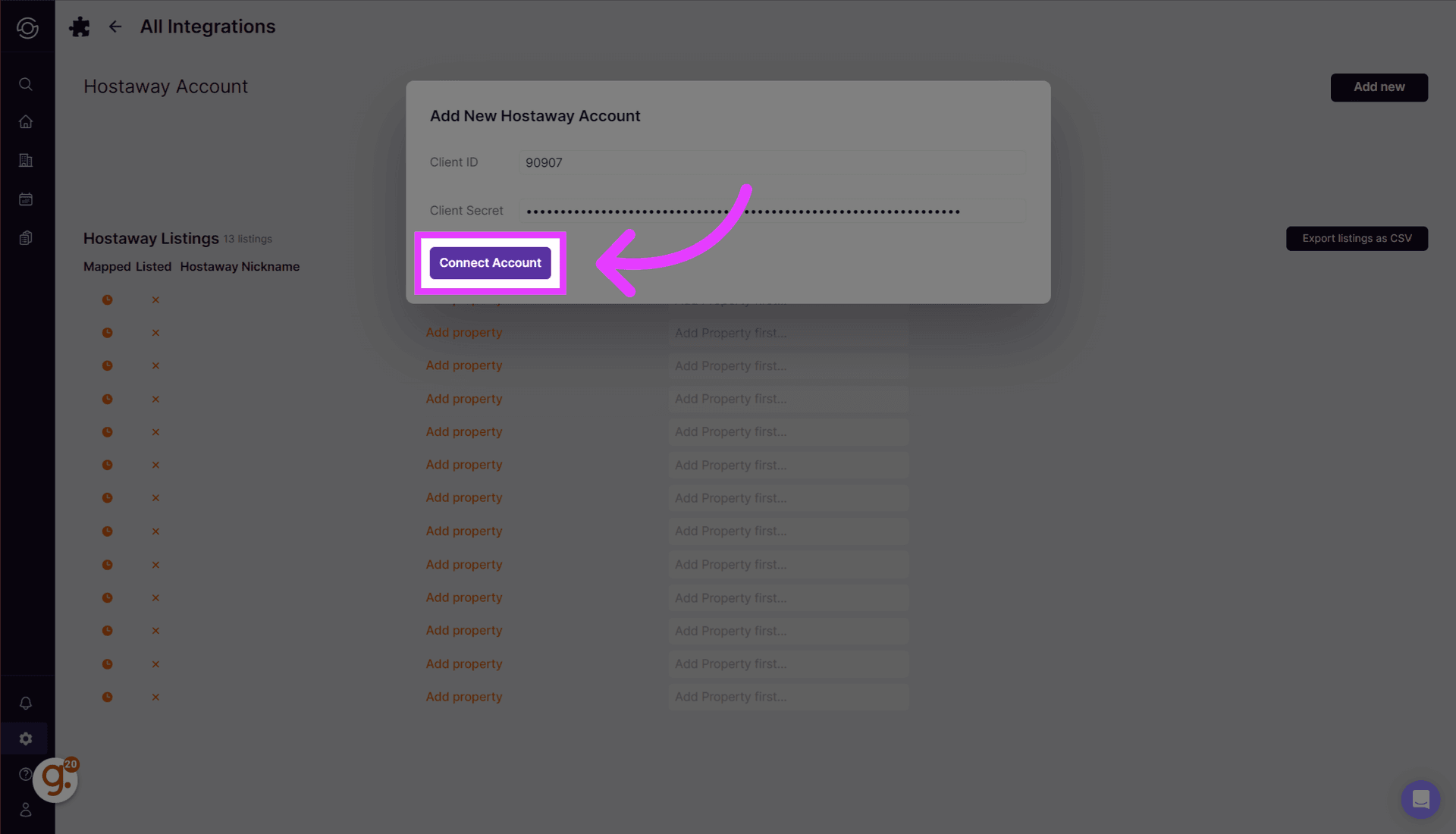
Click “Connect Account”
Proceed with connecting your Hostaway account to SuiteOp.
-
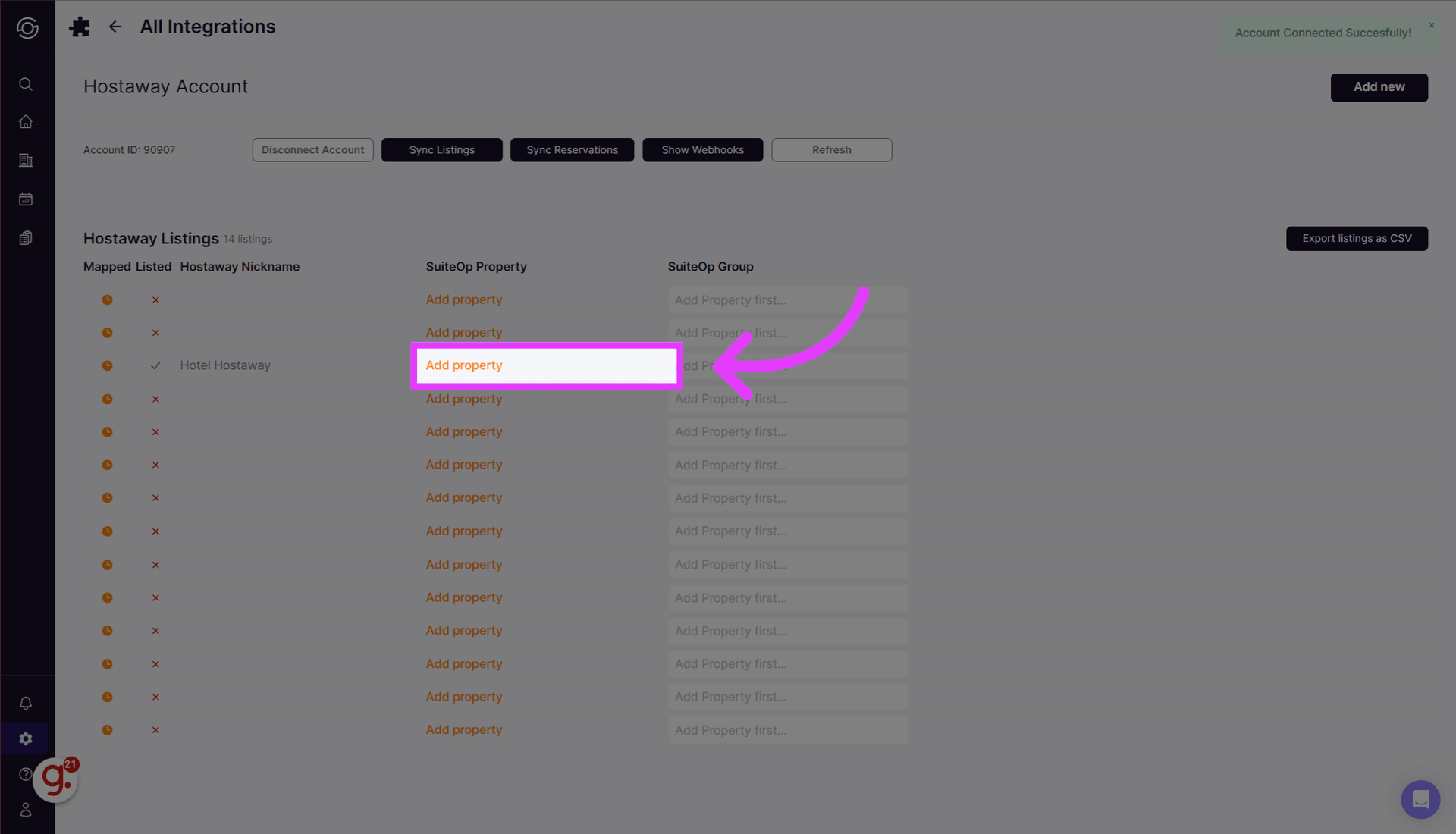
Import your properties
Initiate the process to add a new property. Click on “Add property” to add each property
-
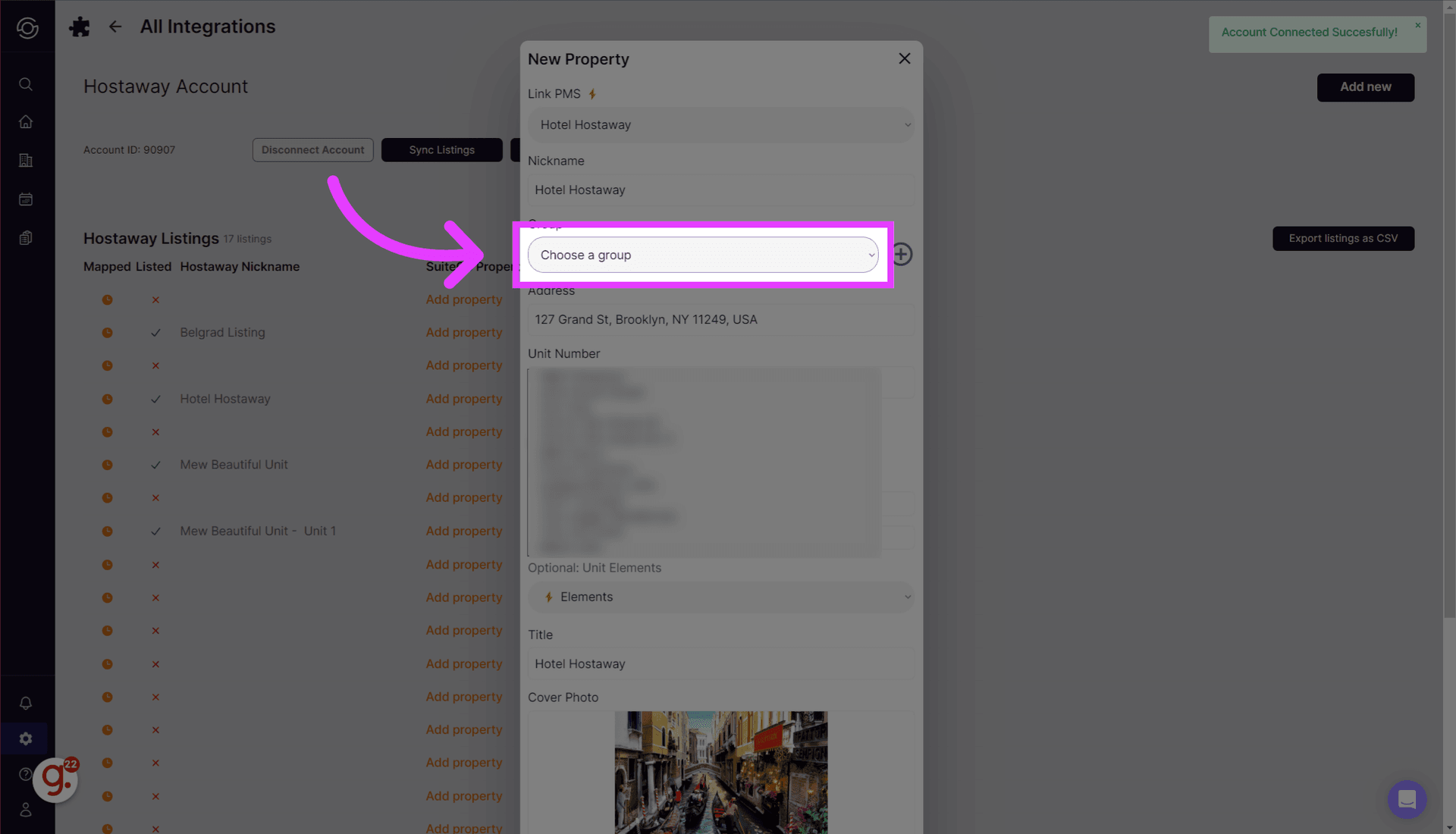
Select or create a group
You’ll need to assign a property to a group. You can easily change the group later.
-
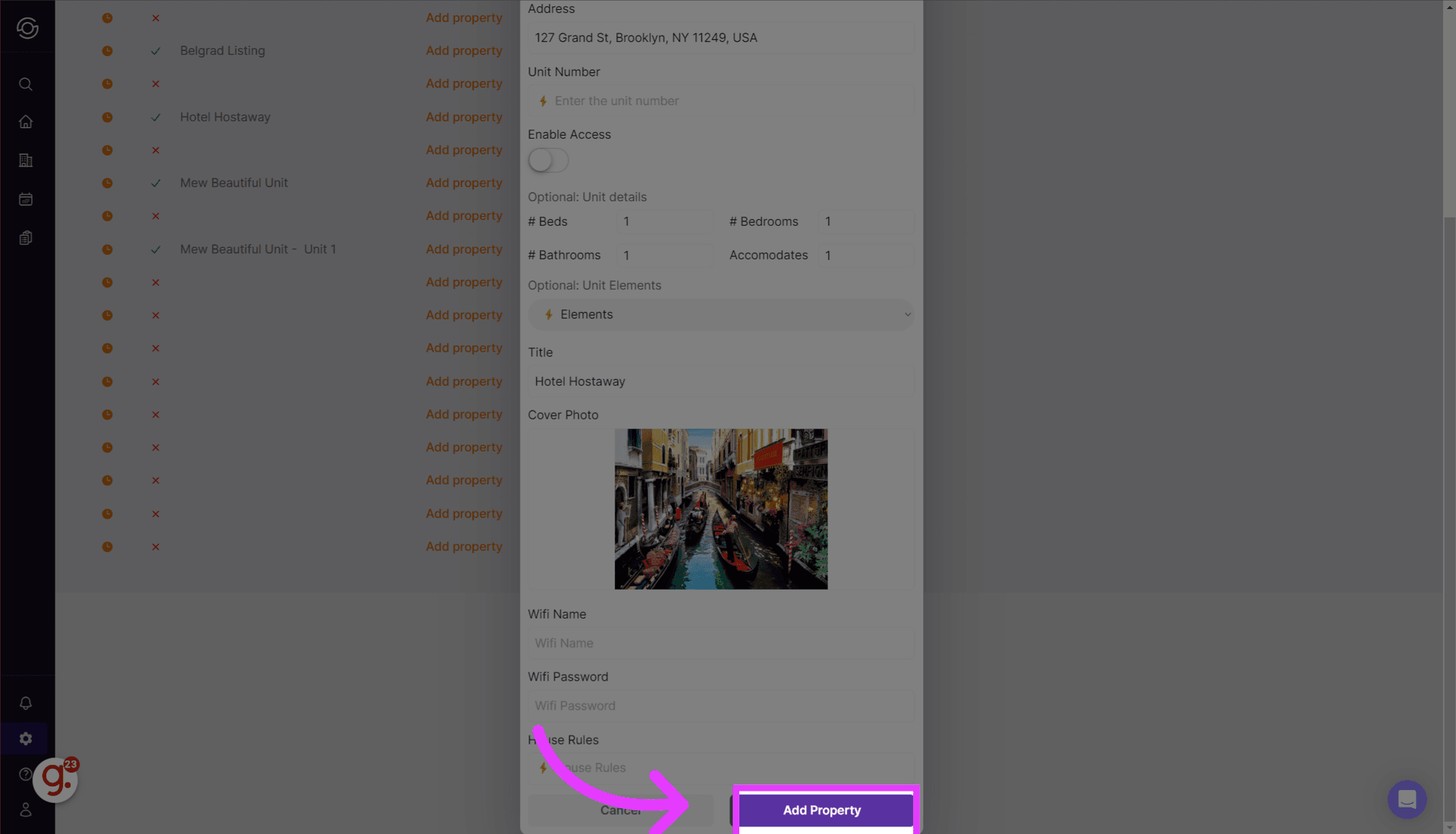
Click “Add Property”
Complete the property addition process.
This guide covered the integration steps between Hostaway and SuiteOp, including initiating the connection, creating new entries, and adding properties. Follow these precise instructions for a seamless integration experience.